This viewer can't save ticks. Open the page in Safari or Chrome to save your progress.
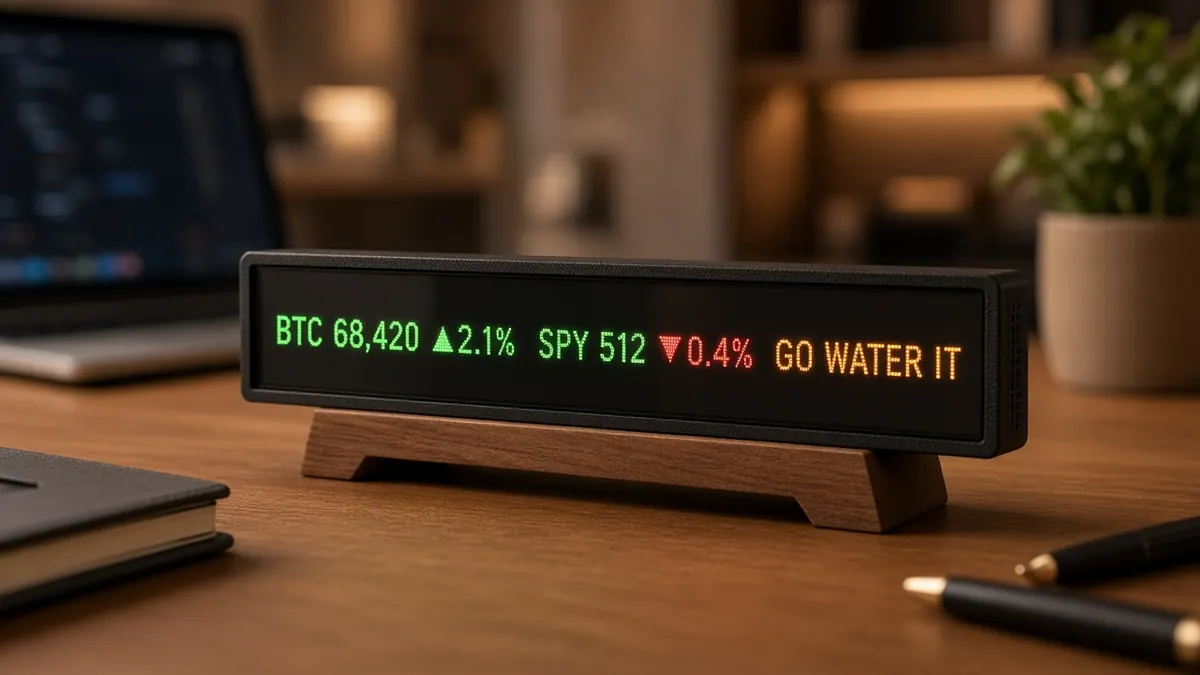
Concept render (AI image, not a photo of a built ticker; the CAD below is what the files make)Concept render
A desk-sized scrolling LED ticker, like a Wall Street ticker, but it shows whatever you want.
Custom text: type anything on your phone and it scrolls across 32 x 8 full-colour pixels.
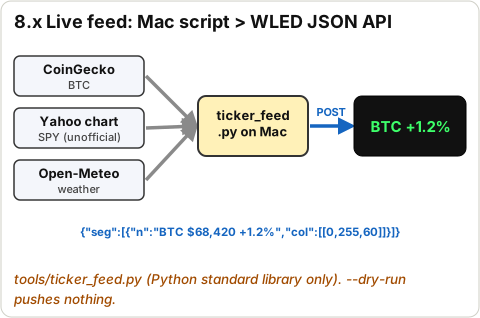
Prices: BTC and SPY with green up / red down / amber alert colours, from a tiny feed script on your Mac.
Weather: current temperature and sky from Open-Meteo (no account, no key).
Colours and effects: any colour, brightness and speed from the WLED app; presets for up/down/alert.
Control app: type anything, pick scroll / static / bounce, speed, font, colours, effects; save presets and schedules. Runs on your phone and Mac (from the ticker itself); try the demo in Stage 7.
Alexa: "Alexa, turn on Ticker", brightness, presets and routines ("Alexa, market mode") by voice, via WLED's built-in Hue emulation. Your own words by voice: a free Siri Shortcut.
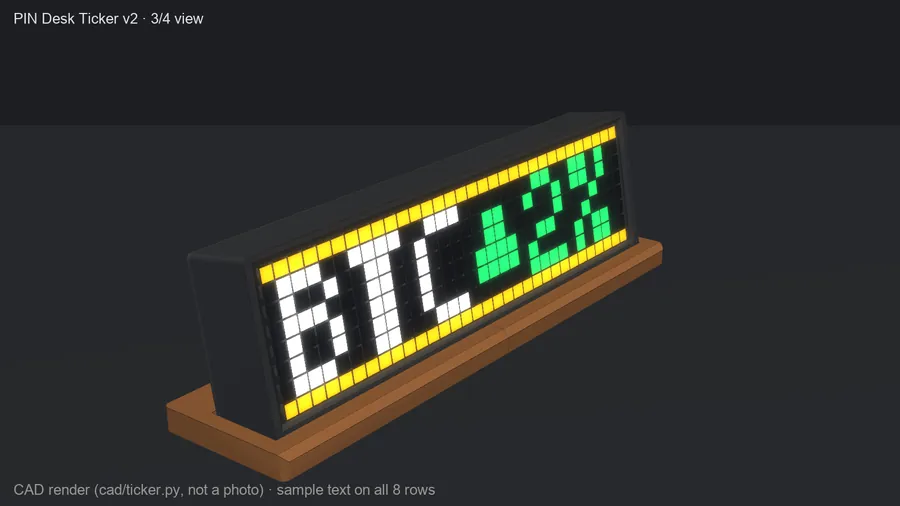
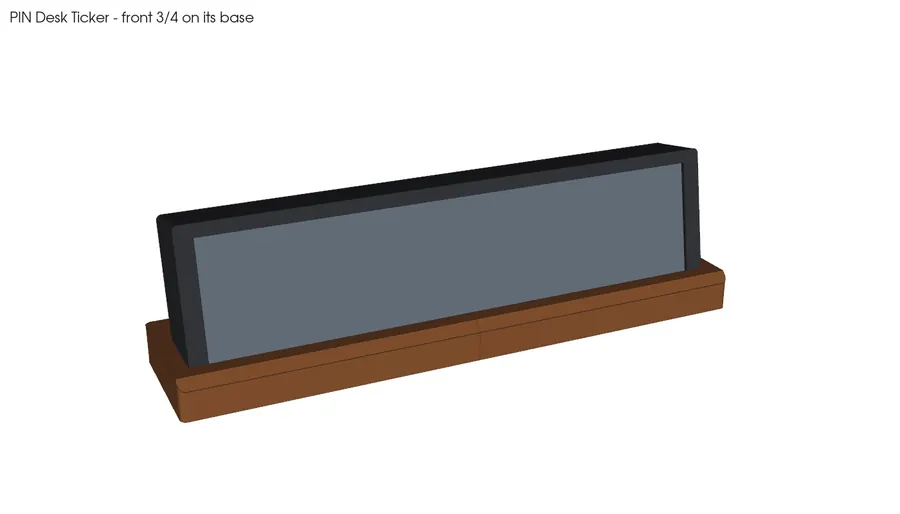
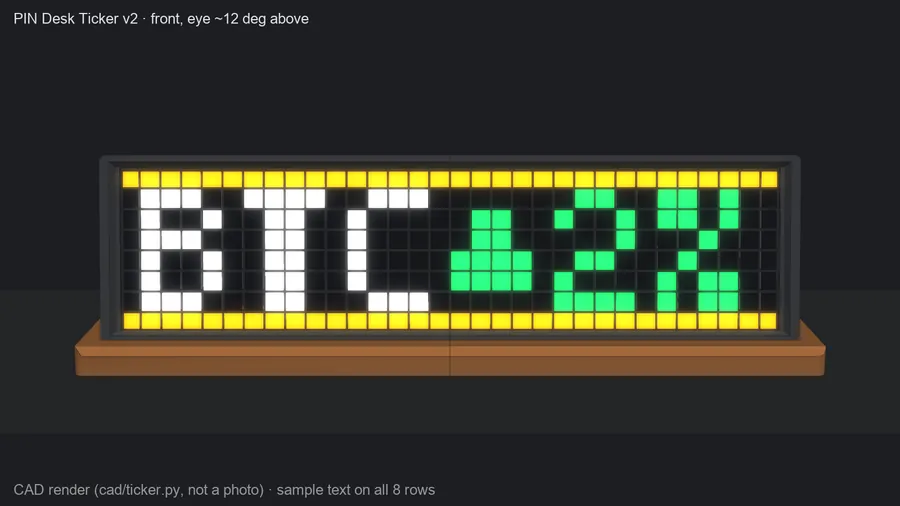
CAD render · lit 34 (from cad/ticker.py)
338 x 92 mmfront (13.3 x 3.6 in)
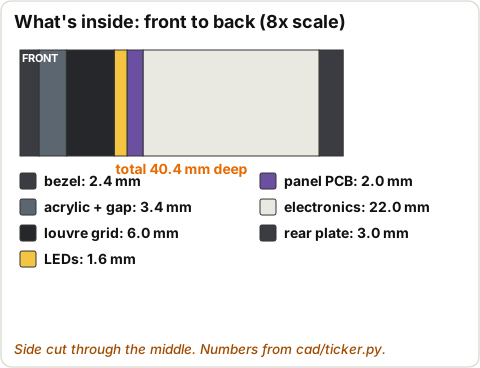
40 mmcase depth
32 x 8full-colour pixels
10 stages73 steps
Parts (CART.md, priced 2026-10-29, nothing bought)
#
Part
Qty
Price
Link
1
WS2812B 8x32 LED matrix (256 px, flexible) BTF-LIGHTING ECO 8X32
Parts: $100.63 before tax (lines 1-7; $94.00 without the optional cap; Amazon-fulfilled $75.18 ships free)
3D print (case + base): ~$30-60 (est.), an estimate until a real Craftcloud quote (~448 g of PLA est., out/print_sheet.md)
All-in: ~$131-161 + tax (est.)
Reused from spares ($0): ruthex M3 heat-set inserts, HVAZI M3 socket-cap screws, 2 mm stainless rod, 26 AWG silicone wire, blue + black, Heat-shrink kit + zip ties, 3M VHB tape. (Plus a scrap of perfboard: check you have one.)
Prices change; links are plain product links (no affiliate tags). Anthony approves every purchase.
Work through the stages in order. Each stage ends with a STOP checkpoint. The next stage stays locked until every step in this stage is ticked and the STOP box is ticked.
Stage 2 and Stage 4 also have a PASS CHECK: type in what you measured (LED count, volts, current). The STOP box only unlocks when the numbers are in range. Don't fake them: Stage 4 is the one that keeps the wiring cool.
Every stage opens with a 3D view: tap a part for its name, cart line and where it goes; Play flies the step's parts into place; Exploded spreads everything out. Each step has a Show in 3D button.
(est.) means estimate. Where a part's size or thread wasn't confirmed it says assumed: measure yours.
Ticks and pass-check answers are saved on this phone only.
Mains: the only thing that touches the wall socket is the sealed ALITOVE power brick. Never open it, never cut its wall cord. Everything inside the ticker is 5 V.
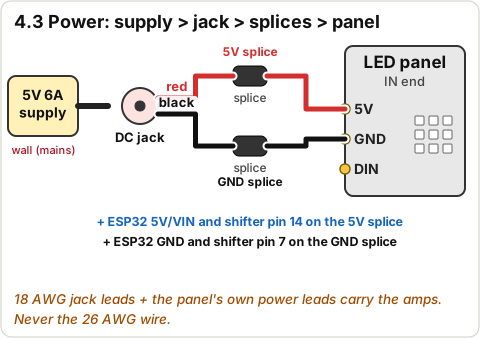
Don't power the panel from USB. 256 LEDs can pull several amps; a laptop or ESP32 USB port gives 0.5-3 A. The panel always runs from the 5V 6A supply through the DC jack. The ESP32 takes its 5 V from the same rail.
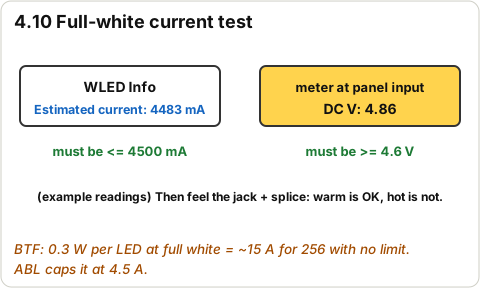
Current limit: set WLED's brightness limiter (ABL) before full brightness. Bench tests: 1,500 mA. Finished ticker: 4,500 mA (the 6 A supply then has headroom). Full white with no limit is about 15 A (0.3 W x 256 LEDs / 5 V, BTF figure): never do that.
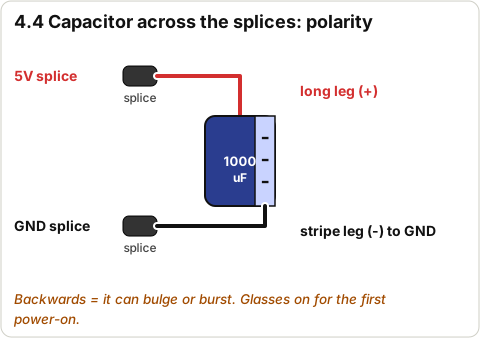
Capacitor polarity: the stripe (minus) leg goes to GND. Backwards, an electrolytic cap can bulge or burst. Wear glasses for the first power-on.
USB + power supply at the same time: for USB flashing, unplug the 5V supply first unless you know your board has a diode on its USB 5V line. Normal updates go over Wi-Fi (OTA), so you rarely need USB once it's built.
Soldering: iron in its stand, glasses on, a fan pulling the smoke away, unplug when done. Heat-set inserts: the iron touches brass, not your fingers.
Acrylic: score away from your hand; snapped edges are sharp until sanded.
What
Value
Where it comes from
Finished front
338 x 92 mm (13.3 x 3.6 in)
cad/ticker.py, PRD
Case depth
40.4 mm
cad/ticker.py
On the desk
358 x 84 x ~102 mm with the base
cad/export.py
Panel
320 x 80 mm, 32 x 8 px, 10 mm pitch
CART.md / BTF listing
Acrylic cut size
330 x 86 mm (from the 12 x 24 in sheet)
cad/ticker.py
Window
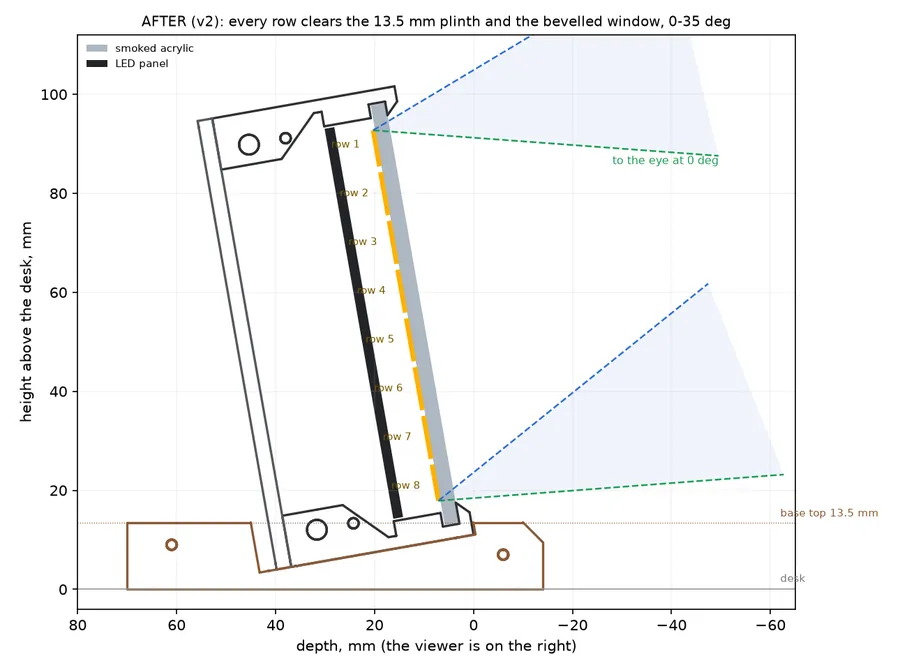
324 x 79.5 mm, 45 deg bevel: every LED row visible from 0-35 deg up, +-30 deg sideways
cad/sightline.py
LED data pin
GPIO16 (WLED's default on ESP32)
this guide
Brightness limit (ABL)
1,500 mA bench, 4,500 mA finished
CART.md / PRD
Supply
5 V 6 A, 5.5 x 2.1 mm, centre +
CART.md row 4
Screws
16 x M3x10 (rear covers + base), 2 x M3x12 (shell joint)
WLED: free open-source LED firmware for the ESP32 (kno.wled.ge). Web page, phone app, JSON API, Alexa.
ABL: WLED's Automatic Brightness Limiter: caps brightness so the estimated current stays under your number.
Level shifter (74AHCT125): turns the ESP32's 3.3 V data signal into a clean 5 V signal for the LEDs.
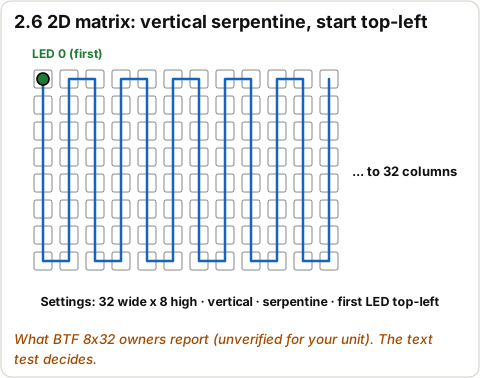
Serpentine (zig-zag): the LED chain runs down one column and back up the next.
Heat-set insert: a brass thread pressed into plastic with a hot iron, so screws can go in and out many times.
Goal: Find every part, check nothing is damaged, and have every tool on the table. No soldering yet.
3D viewStage 0 overview
The 3D model loads when you scroll here.
Drag to turn · pinch to zoom · two fingers to pan · tap a part for its name.
The 3D view is open at step .
Tick Found when you have the part, or Missing if you can't find it. Missing only blocks the stage that needs it (the card says which).
Note: Prices and links are from CART.md (read off the live pages 2026-10-29, Orrin). Nothing has been bought yet: Anthony approves the purchase. Packs give spares (1 extra ESP32, 11 chips, 5 jacks, 4 caps).
Parts to buy (CART.md)
3D stand-in at true size (not a photo; sizes from CART.md / assumed)Diagram · Finding the panel's input end
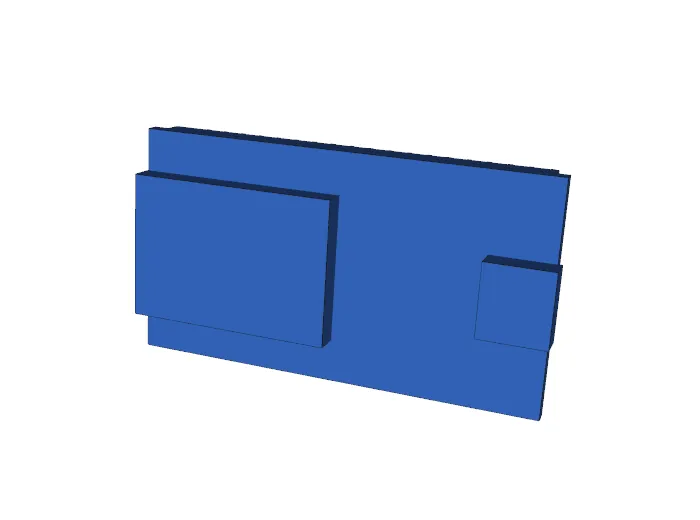
Cart line 1 · WS2812B 8x32 LED matrix (256 px, flexible) qty 1
Thin flexible black circuit board, 320 x 80 mm, 256 square LEDs in a 32 x 8 grid. Wire leads with 3-pin connectors at both short ends; an arrow on the board shows the data direction.
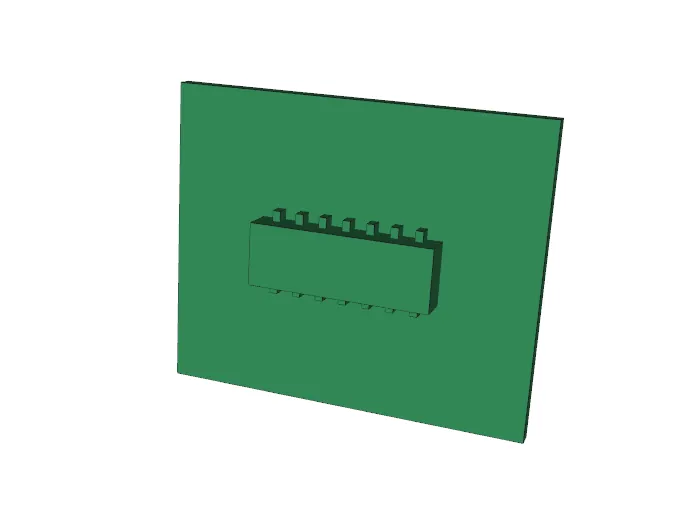
Small board about 52 x 28 mm (size assumed), silver metal can (the WROOM-32 module) at one end, USB-C at the other, two rows of pins underneath. Two in the pack: one is a spare.
CART.md: the buy box said 'add to cart to see price'; $6.63 is the same item in 'Frequently bought together'. Confirm at checkout.
FoundMissing
3D stand-in at true size (not a photo; sizes from CART.md / assumed)Diagram · Score and snap the acrylic
Cart line 7 · Smoked acrylic front, 1/8 in qty 1
Dark grey see-through sheet 12 x 24 in, 1/8 in (3.0-3.2 mm) thick, protective film both sides.
Sibe-R-Plastics 12 x 24 in dark gray transparent #2074 · B0859KVQTT · $14.15 + $11.30 delivery · Needed in stage 5
FoundMissing
Printed parts (out/*.stl)
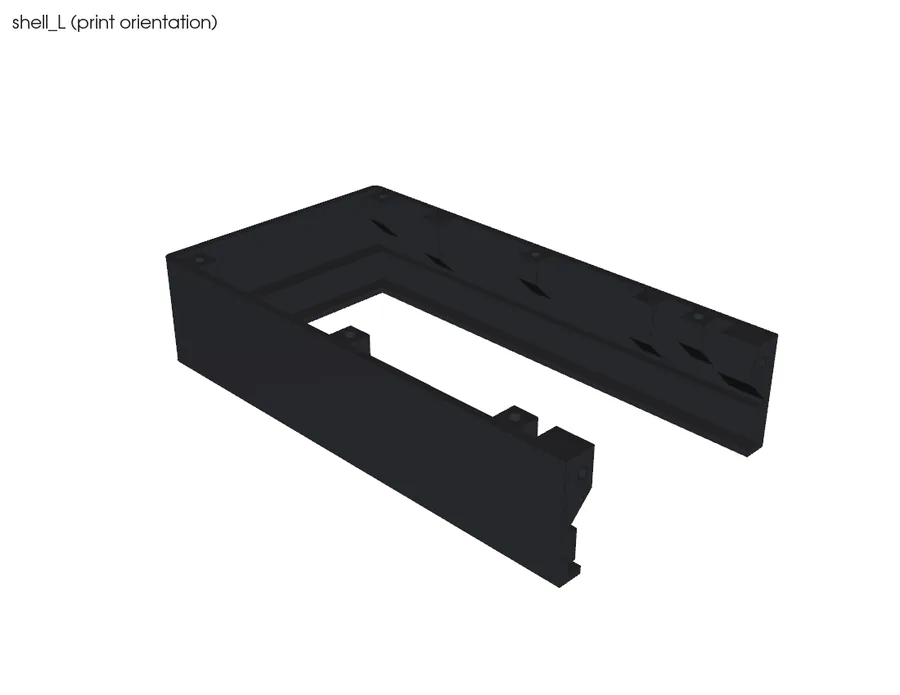
CAD render · shell L (from cad/ticker.py)
Printed · Front shell, left half (shell_L.stl) qty 1
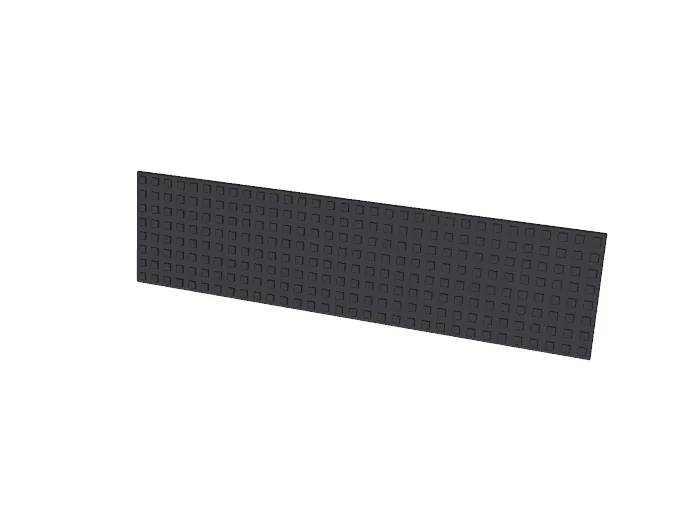
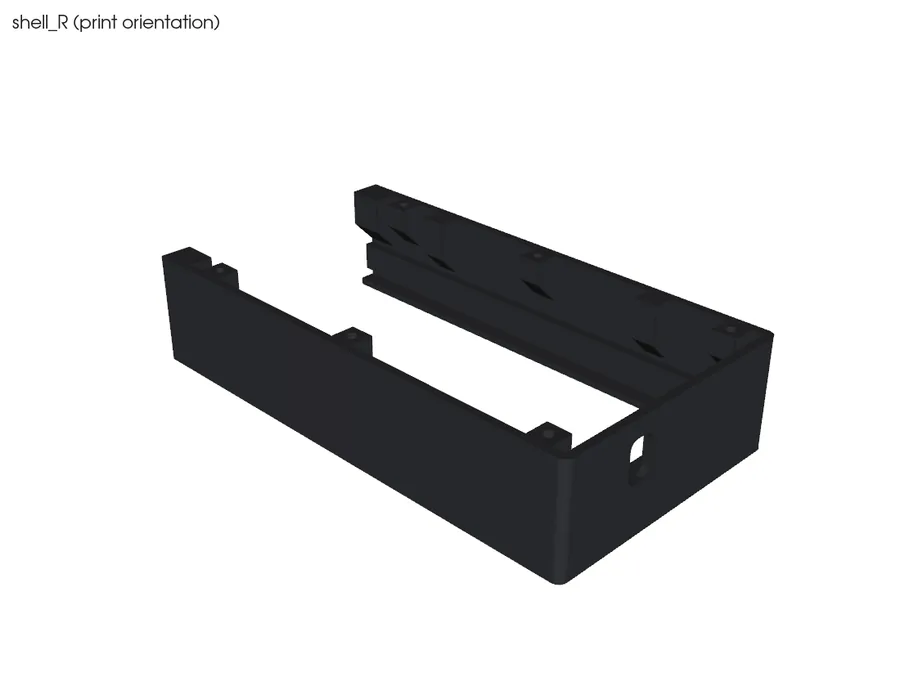
Matte black, 169 x 92 x 37 mm: the left half of the bezel with the window, acrylic rebate and panel pocket. Joint block with a screw pocket at the cut end.
Small knurled brass cylinders, M3 x 5.7 mm. ~86 left after the skimmer.
From the skimmer spares (REUSE.md), $0 · Needed in stage 1
FoundMissing
3D stand-in at true size (not a photo; sizes from CART.md / assumed)
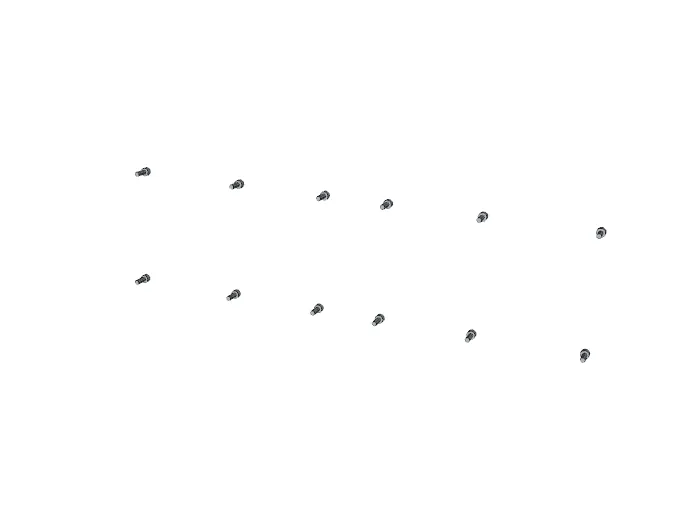
Spare · HVAZI M3 socket-cap screws: 16 x M3x10, 2 x M3x12 qty -
Stainless socket-head screws from the M3 kit; 2.5 mm hex key. M3x12 assumed in the kit: check.
From the skimmer spares (REUSE.md), $0 · Needed in stage 1
FoundMissing
3D stand-in at true size (not a photo; sizes from CART.md / assumed)
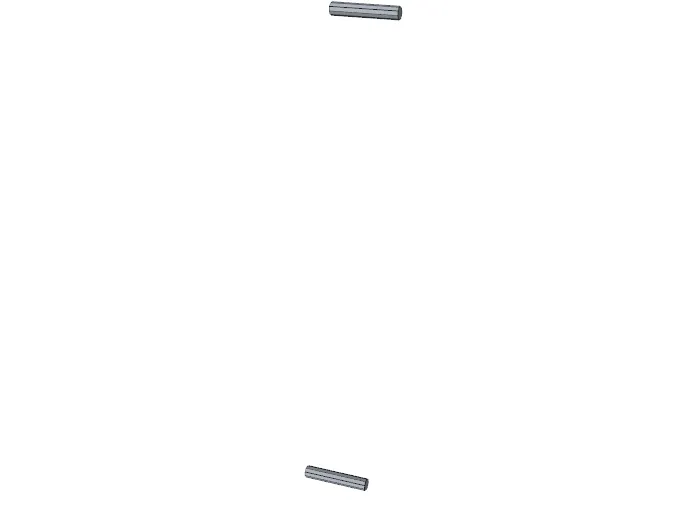
Spare · 2 mm stainless rod (4 pins x 11 mm) qty -
uxcell 304 rod, 2 x 100 mm (11 left). Cut 4 pieces 11 mm long.
From the skimmer spares (REUSE.md), $0 · Needed in stage 1
FoundMissing
3D stand-in at true size (not a photo; sizes from CART.md / assumed)
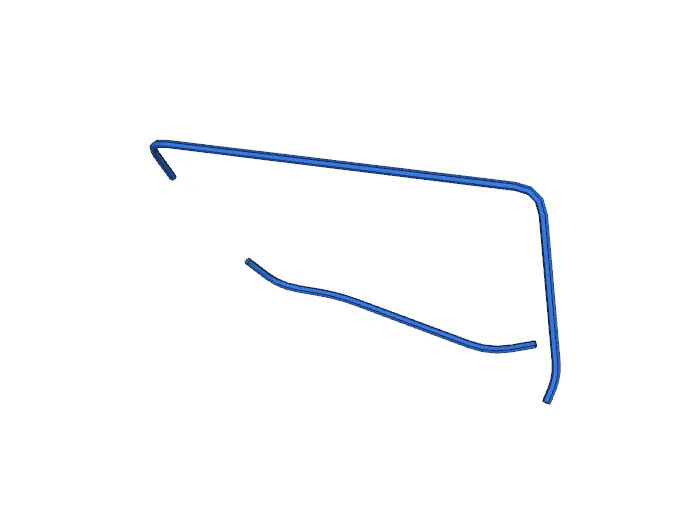
Spare · 26 AWG silicone wire, blue + black qty -
Thin soft wire: data and the small 5V/GND taps only. Power runs on the jack's 18 AWG and the panel's own leads.
From the skimmer spares (REUSE.md), $0 · Needed in stage 3
FoundMissing
3D stand-in at true size (not a photo; sizes from CART.md / assumed)
Spare · Heat-shrink kit + zip ties qty -
Sopoby heat-shrink assortment, GTSE 4 in zip ties.
From the skimmer spares (REUSE.md), $0 · Needed in stage 3
FoundMissing
3D stand-in at true size (not a photo; sizes from CART.md / assumed)
Spare · 3M VHB tape qty -
Grey double-sided foam tape, 12 mm wide. 4 small pads hold the panel to the grid.
From the skimmer spares (REUSE.md), $0 · Needed in stage 5
FoundMissing
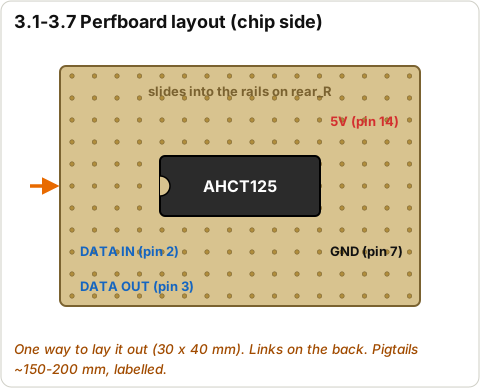
Diagram · Perfboard layout
Spare · Perfboard ~30 x 40 mm qty -
Plain 2.54 mm-pitch prototype board, cut to 30 x 40 mm. Not in REUSE.md: any scrap perfboard (check you have one).
From the skimmer spares (REUSE.md), $0 · Needed in stage 3
FoundMissing
Steps
0.1 Check the LED panel and find its input end
⏱ 5 min (est.) · Parts: LED panel (row 1) · Tools: eyes
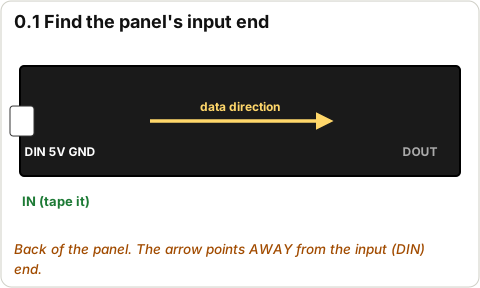
Diagram · Finding the panel's input end3D stand-in at true size (not a photo; sizes from CART.md / assumed)
Lay the panel LEDs-up on a clean table. Look for kinked corners or LEDs knocked off.
Turn it over. Find the small arrow printed along the board and the pads/wires labelled DIN (data in), 5V and GND at one short end. That is the input end. The other end says DOUT.
Stick a bit of masking tape on the input end and write IN.
Pass: No damage; input end found and labelled.
Don't do yet: Don't bend the panel sharply or fold it: the flex board cracks.
Diagram · SN74AHCT125N pin map with what each pin connects to
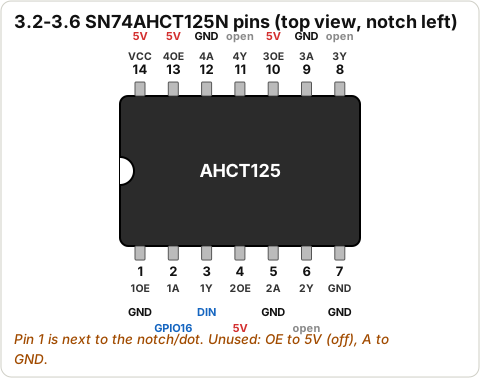
Read the print on one chip: it must say AHCT125 (not HC125 or HCT125 from another drawer). Find the notch or dot: that end is pin 1.
Pass: Chip reads AHCT125, legs straight.
0.4 Check the power supply label
⏱ 2 min (est.) · Parts: power supply (row 4) · Tools: eyes
3D stand-in at true size (not a photo; sizes from CART.md / assumed)
Read the label: 5V 6A output, barrel plug, the polarity symbol shows centre positive (the dot in the middle connects to +).
Pass: 5 V, 6 A, centre positive.
Don't do yet: Don't plug it in yet.
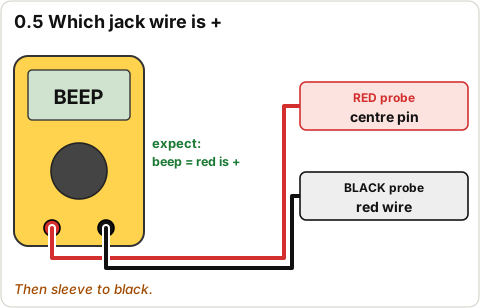
0.5 Check which jack wire is + with the meter
⏱ 5 min (est.) · Parts: DC jack (row 5) · Tools: multimeter
Diagram · Meter: jack centre pin to the red wire
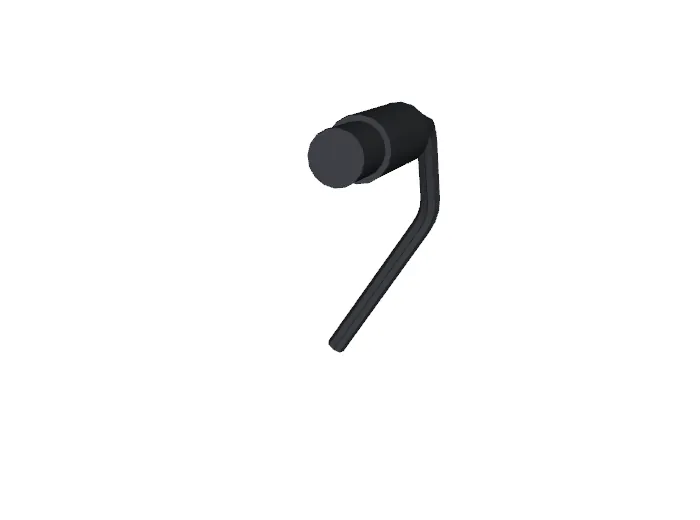
Meter on beep. One probe on the jack's centre pin, the other on the red wire's bare end.
Then the outer metal sleeve to the black wire.
Pass: Centre pin beeps to red, sleeve beeps to black. If yours is the other way round, swap the colours in every later step and mark the wires with tape.
0.6 Check the capacitor marking
⏱ 1 min · Parts: capacitor (row 6) · Tools: eyes
Diagram · Capacitor polarity: stripe to GND
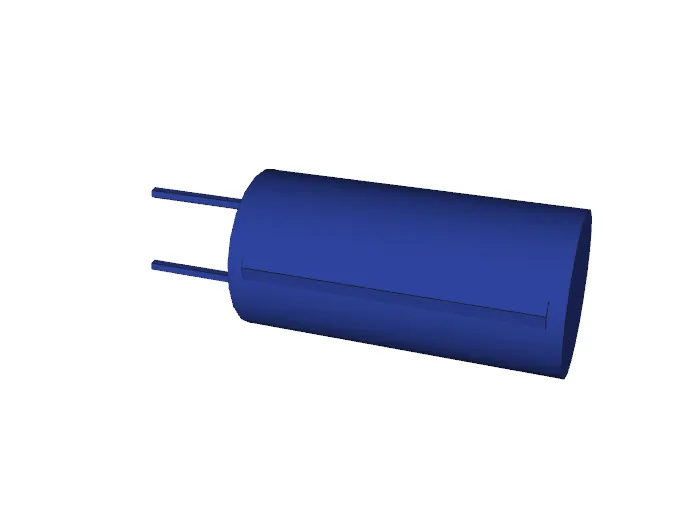
Find 1000 uF and 16V (or higher) on the can. Find the light stripe with minus signs: that leg is negative (GND). The longer leg is positive.
3D stand-in at true size (not a photo; sizes from CART.md / assumed)
Peel back a tiny corner of the film to see the smoked colour, then press it back. The film stays on until Stage 5.
Pass: Sheet uncracked, 1/8 in thick (3.0-3.2 mm on calipers).
0.8 Lay out the spares and tools
⏱ 10 min (est.) · Parts: inserts, screws, rod, wire, heat shrink, VHB, perfboard · Tools: every tool in the Tools list
3D stand-in at true size (not a photo; sizes from CART.md / assumed)3D stand-in at true size (not a photo; sizes from CART.md / assumed)
Count out 18 inserts, 16 x M3x10 and 2 x M3x12 screws, and cut 4 pins of 2 mm rod, 11 mm long (saw, then file the ends smooth).
Put every tool from the Tools list (Stage 1 cards) on the table.
Pass: All counted; tools laid out.
STOP 0: checkpoint
Every cart line, printed part and spare is ticked Found or Missing.
Panel input end labelled IN; jack red = centre (+) confirmed with the meter.
The missing list (shown here) is written down.
Troubleshooting, Stage 0
Symptom
Likely cause
Fix
Chip says HC125 or HCT125
Wrong chip from another drawer
Use only AHCT125 (the VANXY pack). HCT may work; HC won't
Can't find GPIO16 label
Some boards print 'RX2' or just '16'
Use the pinout on the seller's listing; on 38-pin boards it's next to 17 (TX2)
Jack red goes to the sleeve
Wired the other way at the factory
Swap the meaning of the colours; label the wires + and -
No M3x12 in the kit
Kit sizes vary
M3x10 works in the joint too (5 mm of thread engagement)
🔒 Locked: finish Stage 0 first (every tick, its STOP box). You can read ahead.
Goal: Get the 8 printed parts, check they fit, press in 18 heat-set inserts and dry-fit every half.
3D viewStage 1 overview
The 3D model loads when you scroll here.
Drag to turn · pinch to zoom · two fingers to pan · tap a part for its name.
The 3D view is open at step .
Note: Printing is ordered by Anthony (Craftcloud quote from the STL/3MF files in out/; out/print_sheet.md lists them). Print cost is ~$30-60 (est.) until a real quote. Nobody orders from this guide.
Tools (pictures are illustrations: any similar tool is fine)
Illustration (no photo) · Temperature-controlled soldering iron + stand
Temperature-controlled soldering iron + stand
Used in steps: 1.4, 3.3, 3.4, 3.5, 3.6, 4.3, 4.4, 4.5
Illustration (no photo) · Thin rosin-core solder (0.5-0.8 mm)
Thin rosin-core solder (0.5-0.8 mm)
Used in steps: 3.3, 3.4, 3.5, 3.6, 4.3, 4.4, 4.5
Illustration (no photo) · Multimeter (DC volts, beep)
Multimeter (DC volts, beep)
Used in steps: 0.5, 3.7, 4.2, 4.7, 4.8, 4.10
Illustration (no photo) · Wire strippers (18 + 26 AWG)
Wire strippers (18 + 26 AWG)
Used in steps: 3.3, 4.3
Illustration (no photo) · Flush cutters
Flush cutters
Used in steps: 4.6
Illustration (no photo) · Heat gun (heat shrink)
Heat gun (heat shrink)
Used in steps: 4.3
Illustration (no photo) · 2.5 mm hex key (M3 screws)
2.5 mm hex key (M3 screws)
Used in steps: 1.5, 5.2, 6.1, 6.2, 6.4
Illustration (no photo) · Digital calipers
Digital calipers
Used in steps: 1.2
Illustration (no photo) · Hobby knife + plastic scoring knife
Hobby knife + plastic scoring knife
Used in steps: 1.3, 3.1, 5.1
Illustration (no photo) · Metal straightedge / ruler
Metal straightedge / ruler
Used in steps: 3.1, 5.1
Illustration (no photo) · 240 grit sandpaper + small file
240 grit sandpaper + small file
Used in steps: 1.3, 3.1, 5.1
Illustration (no photo) · Alligator-clip test leads (about 6)
Alligator-clip test leads (about 6)
Used in steps: 2.4, 3.8
Illustration (no photo) · Helping hands or masking tape
Helping hands or masking tape
Used in steps: general
Illustration (no photo) · USB-C DATA cable (not charge-only)
USB-C DATA cable (not charge-only)
Used in steps: 2.1, 2.2, 6.2
Illustration (no photo) · Computer with Chrome or Edge
Computer with Chrome or Edge
Used in steps: 1.1, 2.1, 2.2, 2.3, 2.5, 2.6, 2.9, 7.1, 7.2, 9.1, 9.2, 9.3 ...
Illustration (no photo) · Phone (WLED app, Alexa app)
Phone (WLED app, Alexa app)
Used in steps: 2.3, 2.5, 2.6, 2.7, 2.8, 2.9, 4.9, 4.10, 4.11, 5.6, 7.2, 7.3 ...
Illustration (no photo) · Safety glasses
Safety glasses
Used in steps: 1.4, 5.1
Illustration (no photo) · Small saw or rotary tool (2 mm rod)
Small saw or rotary tool (2 mm rod)
Used in steps: general
Steps
1.1 Get a print quote with the right settings
⏱ 15 min (est.) · Parts: out/*.stl or out/*.3mf (8 files) · Tools: computer
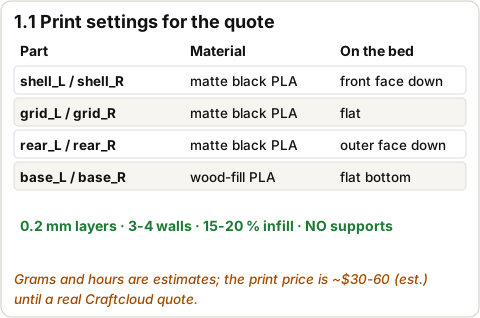
Diagram · Print settings for the quoteCAD render · assembly front (from cad/ticker.py)
Upload the 8 files. Settings: PLA, matte black for shell, grid and rear cover halves; wood-fill PLA (walnut) for the two base halves. 0.2 mm layers, 3-4 walls, 15-20 % infill, no supports.
Orientation is already set in the files: shells and grids front face down, rear covers outer face down, base flat bottom down.
Part
Qty
Material
Est. weight
shell_L, shell_R
1 + 1
matte black PLA
~70 g each (est.)
rear_L, rear_R
1 + 1
matte black PLA
~58 / ~62 g (est.)
grid_L, grid_R
1 + 1
matte black PLA
~25 g each (est.)
base_L, base_R
1 + 1
wood-fill PLA
~71 g each (est.)
Pass: Quote shows all 8 parts in the right material; no supports added.
Don't do yet: Don't let the print service rotate the shells: front face down gives the clean bezel.
1.2 Measure the prints
⏱ 10 min (est.) · Parts: all 8 printed parts · Tools: digital calipers
CAD render · shell L (from cad/ticker.py)CAD render · shell R (from cad/ticker.py)
Join each shell half's pocket edges in your head: measure the panel pocket (should be 160.5 mm per half along, 81 mm tall) and the acrylic rebate (86.6 mm tall, 3.4 mm deep).
Lay each long part on a flat table: no rocking (warp).
Pass: Within about 0.3 mm of the numbers; nothing warped more than about 0.5 mm (est.).
1.3 Clean up holes and edges
⏱ 10 min (est.) · Parts: shells, rear covers, base · Tools: hobby knife, sandpaper
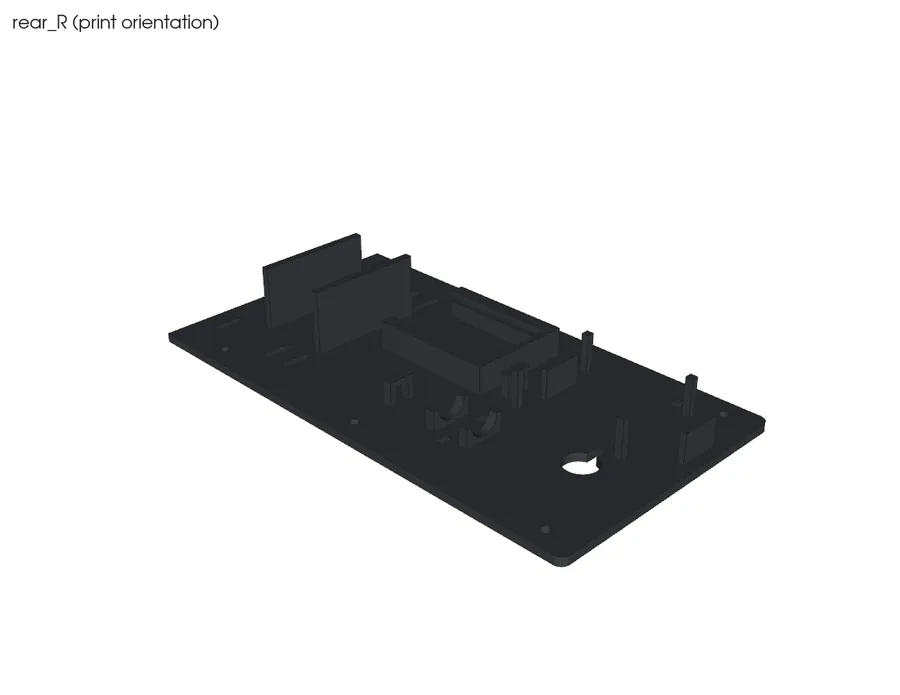
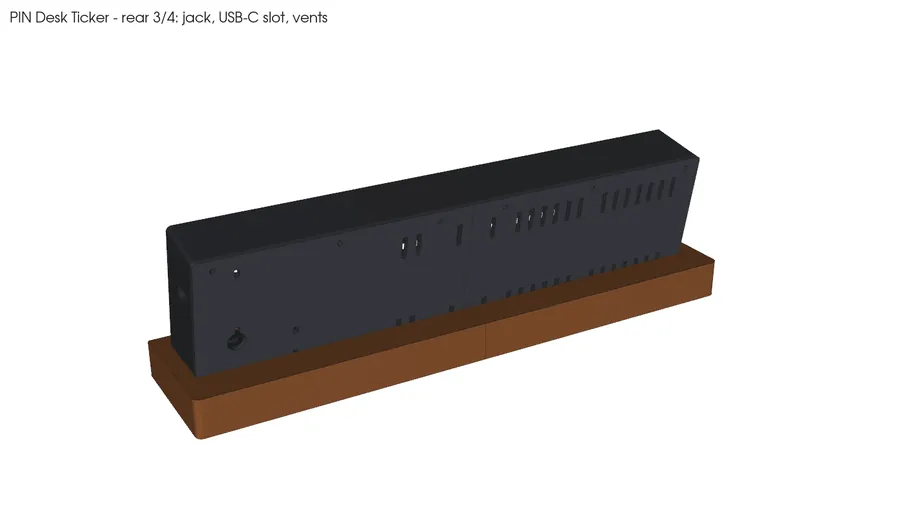
CAD render · rear R (from cad/ticker.py)
Trim any strings in the window, the USB-C slot and the vents. Lightly sand the cut faces at the split so the halves meet flat.
Pass: Halves meet with no gap you can see light through.
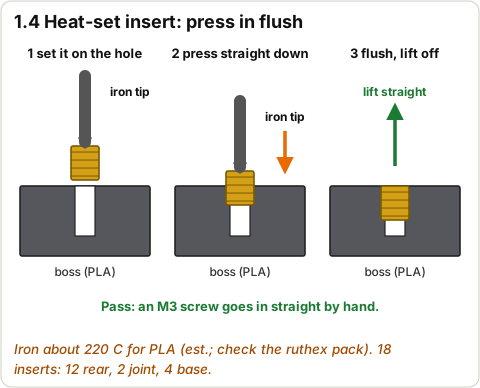
Iron about 220 C for PLA (est.; check the insert pack). Set an insert on its hole, press straight down slowly with the iron tip until it's flush, lift straight off.
Where
How many
Hole faces
Rear-cover bosses (top + bottom walls, back edge)
12 (6 per half)
the back
Joint blocks, RIGHT half only (cut face)
2
the split, toward the left half
Base bosses (bottom wall)
4 (2 per half)
down, through the bottom
Pass: All 18 flush and straight: an M3 screw goes in by hand without forcing.
Don't do yet: Don't push sideways or the insert tilts. Don't overheat: the boss melts out.
1.5 Dry-fit the two shell halves
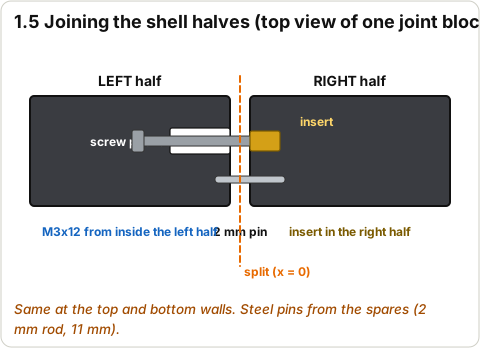
⏱ 10 min (est.) · Parts: shell_L, shell_R, 2 pins, 2 x M3x12 · Tools: 2.5 mm hex key
Diagram · Shell joint: pins, M3x12 screw and insert
Push the two 2 mm pins into the joint blocks of the left half (top and bottom). Bring the halves together. From inside the left half, put an M3x12 through each screw pocket into the right half's insert and snug it.
Run a finger over the front seam.
Pass: Front seam flush (no step you can feel), window straight.
Don't do yet: Don't overtighten: snug only. They come apart again for Stage 5.
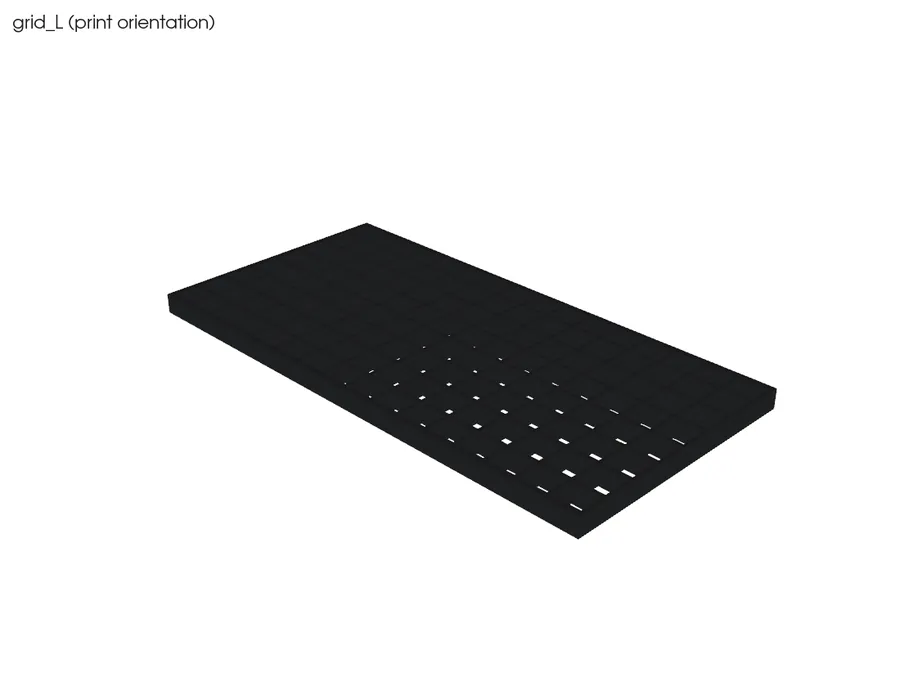
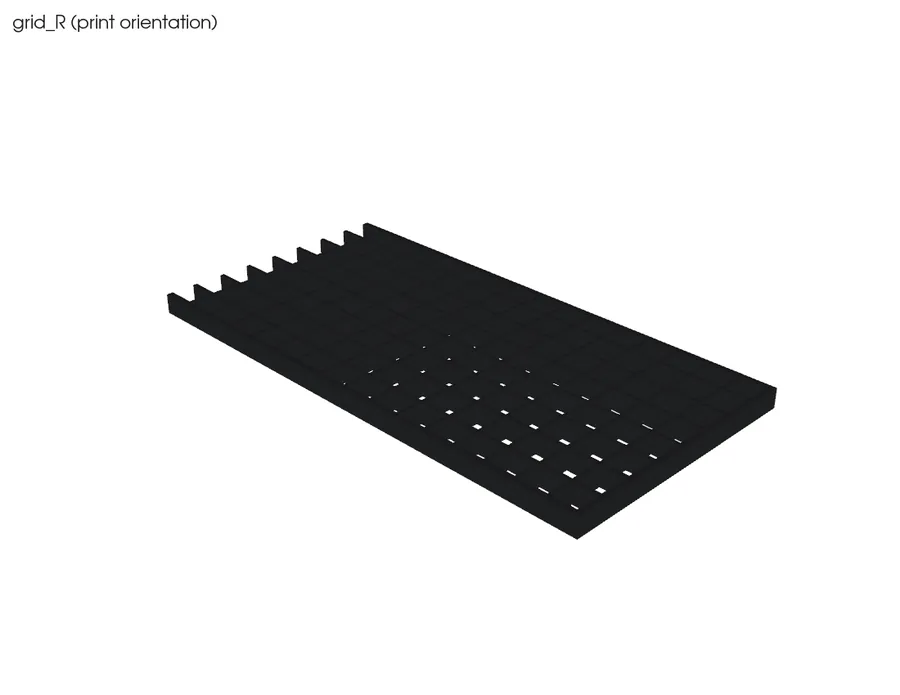
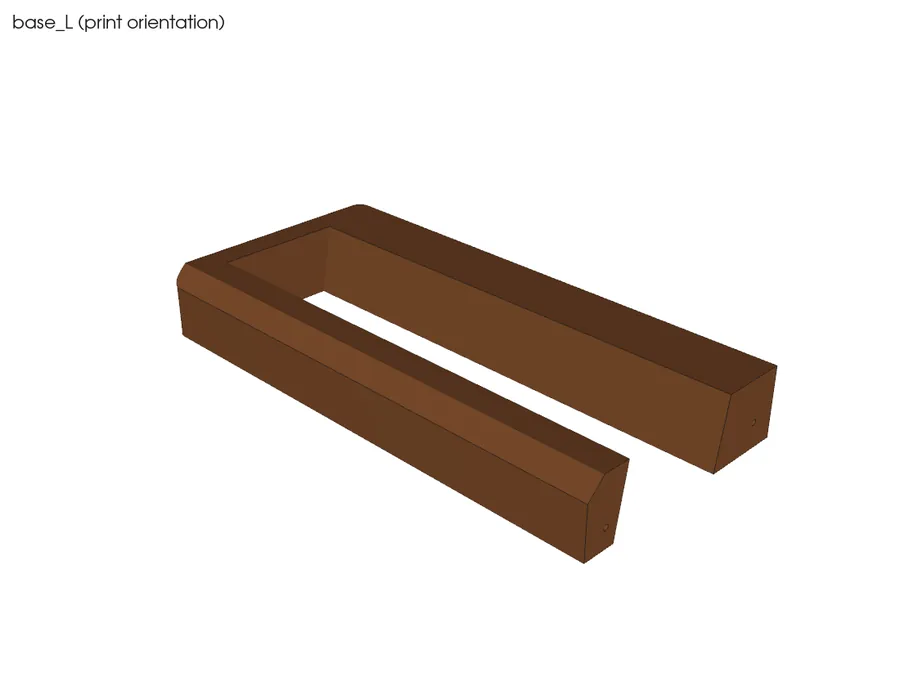
CAD render · grid L (from cad/ticker.py)CAD render · base L (from cad/ticker.py)
Grid halves: they just sit side by side (the left one owns the centre divider).
Rear covers: lay them on the back of the shell; the 12 holes line up with the inserts.
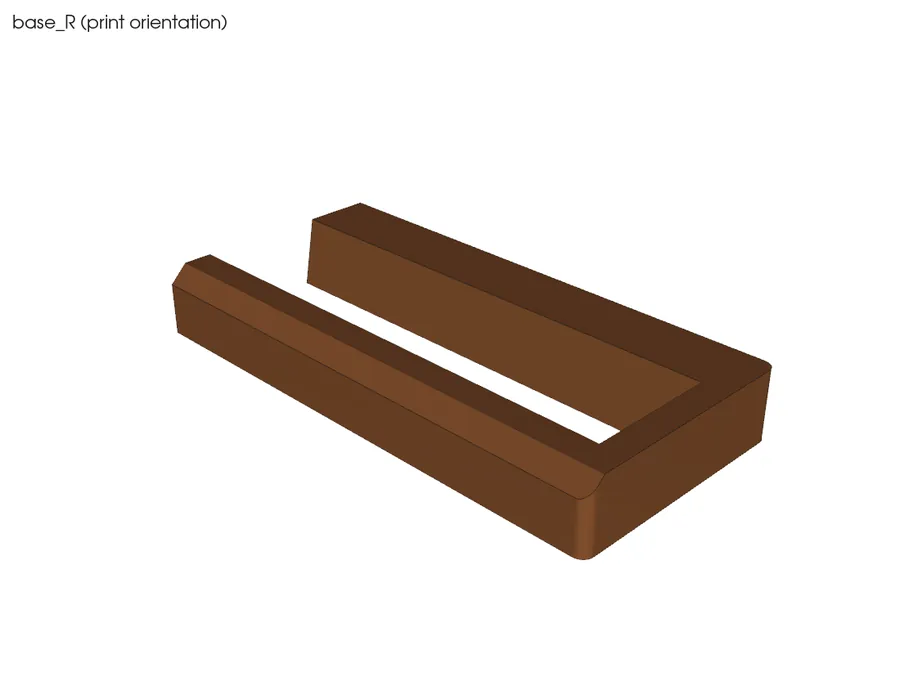
Base: push 2 pins into one half, join the halves; the pocket is one continuous recess.
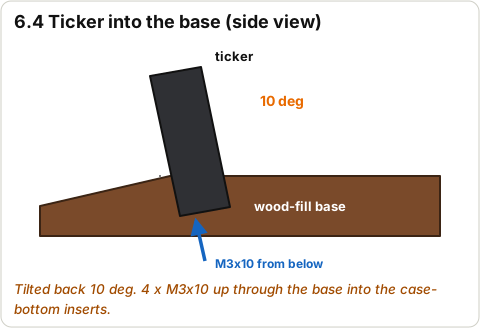
Pass: Everything lines up; the shell's bottom sits in the base pocket leaning back about 10 deg.
STOP 1: checkpoint
8 prints checked, sized and cleaned.
18 inserts in, straight.
Shell halves join flush; base halves join; rear covers line up.
Troubleshooting, Stage 1
Symptom
Likely cause
Fix
Insert went in crooked
Pressed at an angle
Reheat and pull it out with the iron + pliers; fill and redo, or skip that one (11 others hold)
Halves don't meet
Elephant foot or a blob at the cut face
Sand the cut face flat on sandpaper on a table
Shell warped
Long thin print cooled unevenly
Ask for a brim / enclosure reprint; the acrylic and screws pull small warps flat
Wood-fill base is rough
Wood-fill texture
Sand 240 grit; wipe on a little furniture oil or wax for a walnut look
🔒 Locked: finish Stage 1 first (every tick, its STOP box). You can read ahead.
Goal: WLED on the ESP32, on your Wi-Fi, and the panel lighting every pixel the right way round, on the bench.
3D viewStage 2 overview
The 3D model loads when you scroll here.
Drag to turn · pinch to zoom · two fingers to pan · tap a part for its name.
The 3D view is open at step .
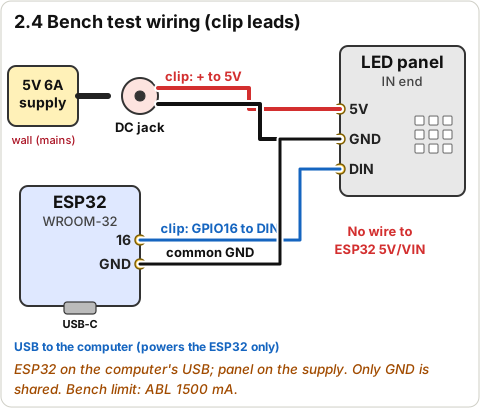
Warning: Bench setup: the panel runs from the 5V supply, the ESP32 runs from the computer's USB. Only the GND wires are joined between them. Never join the USB 5V and the supply's 5V.
2.1 Install the USB driver if the board doesn't show up
3D stand-in at true size (not a photo; sizes from CART.md / assumed)
Plug the ESP32 into the computer with a data USB-C cable. On a Mac, recent macOS usually sees the CP2102 on its own. If no port appears in the next step, install the Silicon Labs CP210x VCP driver from silabs.com and allow it in System Settings > Privacy & Security.
Pass: The board's red power LED is on.
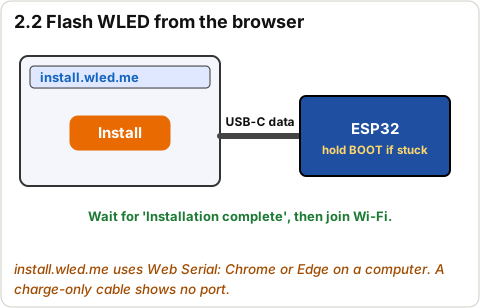
2.2 Flash WLED from install.wled.me
⏱ 5 min (est.) · Parts: ESP32 · Tools: computer (Chrome or Edge), USB-C cable
Diagram · Flash WLED from install.wled.me
Open install.wled.me in Chrome or Edge (Safari can't do Web Serial). Pick the latest stable release, click Install, choose the port that says CP2102 / usbserial, and wait for 'Installation complete'.
If it can't connect: hold the BOOT button, click Install, let go when it starts writing.
Pass: Installer says done; the board restarts.
Don't do yet: Don't plug the panel or the 5V supply into the ESP32 yet.
2.3 Join WLED to your Wi-Fi
⏱ 5 min (est.) · Parts: ESP32 · Tools: phone or computer
Diagram · Flash WLED from install.wled.me
The installer can send your Wi-Fi details directly. If not: join the Wi-Fi network WLED-AP (password wled1234), a page opens; WiFi Settings: enter your home network.
Same page: set mDNS address to ticker (so it's http://ticker.local) and note the IP address it shows.
Pass: You can open http://ticker.local (or the IP) from your phone on home Wi-Fi.
2.4 Wire the bench test
⏱ 10 min (est.) · Parts: panel, DC jack, PSU, ESP32 · Tools: clip leads
Diagram · Bench test wiring with clip leads
PSU unplugged. Clip: jack red to panel 5V, jack black to panel GND.
Clip: ESP32 GPIO16 to panel DIN (directly for now; the level shifter comes in Stage 3).
Clip: ESP32 GND to panel GND (the common ground).
ESP32 stays on the computer's USB.
Wiring:
From
To
Wire
Jack red (+)
Panel 5V
clip lead
Jack black (-)
Panel GND
clip lead
ESP32 GPIO16
Panel DIN
clip lead
ESP32 GND
Panel GND
clip lead (common ground)
Pass: 4 clips on, nothing touching anything else.
Don't do yet: Don't connect ESP32 5V/VIN to anything in this stage.
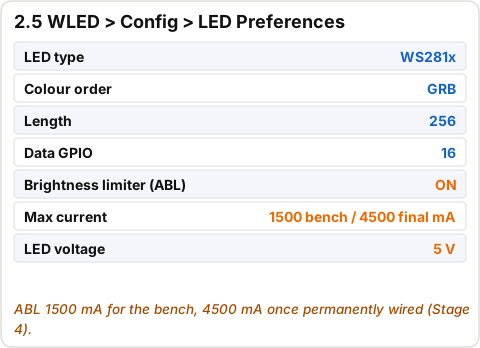
2.5 Set LED Preferences (and a 1,500 mA bench limit)
⏱ 5 min (est.) · Parts: ESP32 · Tools: phone or computer
Diagram · WLED LED Preferences
WLED > Config > LED Preferences:
Setting
Value
LED type
WS281x
Colour order
GRB
Length
256
Data GPIO
16
Automatic Brightness Limiter
ON, max current 1500 mA (bench)
LED voltage / current per LED
5 V, 55 mA (WLED default)
Save. Now plug the PSU into the wall and into the jack.
Pass: WLED reboots; the panel may light the default orange.
Don't do yet: Don't set the limit higher on clip leads.
2.6 Set up the 2D matrix
⏱ 5 min (est.) · Parts: ESP32 · Tools: phone or computer
Config > 2D Configuration: Strip or panel = 2D Matrix, panel 32 wide x 8 high, one panel. Start with: first LED top left, vertical, serpentine ON (what BTF 8x32 owners report; your panel may differ, so the test below decides).
Pass: Saved.
2.7 All-pixels and colour test
⏱ 5 min (est.) · Parts: panel · Tools: phone
Diagram · All-pixels and colour test
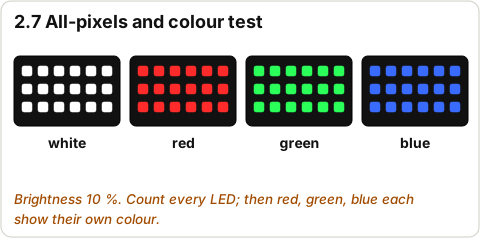
Main page: effect Solid, colour white, brightness about 10 %. Count: every LED lit, no dark ones.
Then Solid red, green, blue: each must show its own colour.
Pass: 256 lit; red shows red (write the numbers in the PASS CHECK below).
2.8 Orientation test with scrolling text
⏱ 10 min (est.) · Parts: panel · Tools: phone
Diagram · Orientation test results and fixes
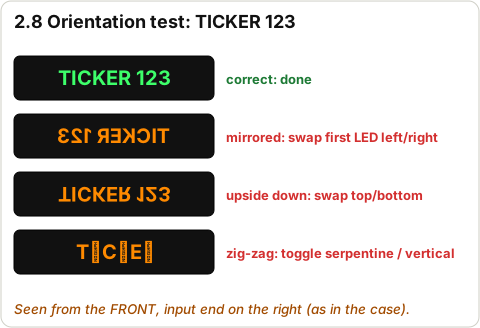
Effect Scrolling Text. Segment name (pencil icon on the segment) = TICKER 123. Hold the panel with the input end on the RIGHT as seen from the front (that's how it sits in the case).
What you see
Fix in 2D Configuration
Reads correctly, moves right to left
Nothing: done
Mirrored left-right
Change first LED left <-> right
Upside down
Change first LED top <-> bottom
Jumbled / zig-zag stripes
Toggle serpentine; if still wrong toggle vertical
Pass: TICKER 123 reads correctly from the front.
2.9 Back up the WLED settings
⏱ 2 min · Parts: ESP32 · Tools: phone or computer
Diagram · WLED LED Preferences
Config > Security & Updates > Backup configuration. Keep the file: a reflash then takes a minute.
Pass: cfg.json saved.
✅ PASS CHECK (required): bench LED test
Answer with what you actually saw or measured. The STOP box unlocks when every answer is in range.
All 256 must light. Fewer: check the dead one isn't the first (data) LED, check GND is joined.
Wrong colour = wrong colour order: set GRB in LED Preferences and test again.
Use the orientation table in step 2.8 to fix it, then test again.
Check the GND clip; if still flaky it's what the level shifter (Stage 3) fixes
Nothing lights
Wrong GPIO, PSU off, panel output end used
GPIO 16 in LED Prefs; clip to the DIN end (arrow points away from it)
Installer can't find a port
Charge-only cable or no driver
Try another USB-C cable; install the CP210x driver
Red shows green
Colour order
Set GRB (or try RGB) in LED Preferences
ticker.local doesn't open
mDNS blocked on some networks/Android
Use the IP address shown in WLED or your router
🔒 Locked: finish Stage 2 first (every tick, its STOP box and its PASS CHECK). You can read ahead.
Goal: A 30 x 40 mm perfboard with the SN74AHCT125N wired so the ESP32's 3.3 V data comes out as clean 5 V.
3D viewStage 3 overview
The 3D model loads when you scroll here.
Drag to turn · pinch to zoom · two fingers to pan · tap a part for its name.
The 3D view is open at step .
Note: Why: the ESP32 outputs 3.3 V and WS2812B wants about 3.5 V+ for a clean 'high'. It often works without, but the chip removes the flicker risk (CART.md).
Diagram · SN74AHCT125N pin map with what each pin connects to
Push the chip through the middle of the board, notch toward the left (pin 1 bottom-left, looking at the chip side). Bend two corner legs on the back so it stays put.
Note: A DIP-14 socket is nicer but isn't in the cart; solder the chip directly (11 spares in the pack).
Diagram · SN74AHCT125N pin map with what each pin connects to
Pins 4, 10, 13 (2OE, 3OE, 4OE) to pin 14 (5V): those channels off.
Pins 5, 9, 12 (2A, 3A, 4A) to pin 7 (GND): no floating inputs.
Wiring:
Pins
Name
Tie to
4, 10, 13
2OE, 3OE, 4OE
pin 14 (5V)
5, 9, 12
2A, 3A, 4A
pin 7 (GND)
6, 8, 11
2Y, 3Y, 4Y
nothing (leave open)
Pass: Beep checks match the table; no pin bridged to its neighbour.
3.6 Data in and data out
⏱ 10 min (est.) · Parts: 26 AWG blue wire · Tools: iron, solder ( )
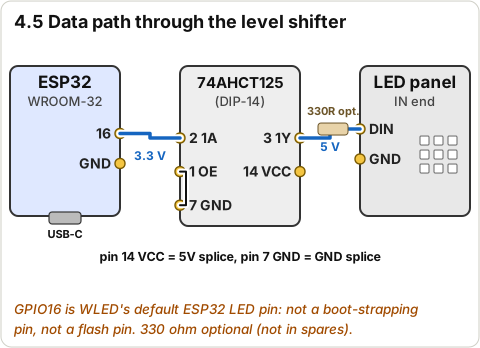
Diagram · Data path: GPIO16 > 74AHCT125 > panel DIN
Pin 2 (1A): blue pigtail ~150 mm labelled DATA IN (it goes to ESP32 GPIO16).
Pin 3 (1Y): blue pigtail ~200 mm labelled DATA OUT (it goes to the panel DIN).
Note: A 330 ohm resistor in series with DATA OUT is good practice, but it's not in spares. With the chip this close to the panel it's skippable. If you get one later, put it at pin 3.
Wiring:
Pin
Name
Goes to
2
1A
ESP32 GPIO16
3
1Y
panel DIN (optional 330 ohm)
Pass: Two labelled data pigtails.
3.7 Meter checks (nothing powered)
⏱ 5 min (est.) · Parts: perfboard · Tools: multimeter
Diagram · Meter: shifter checks
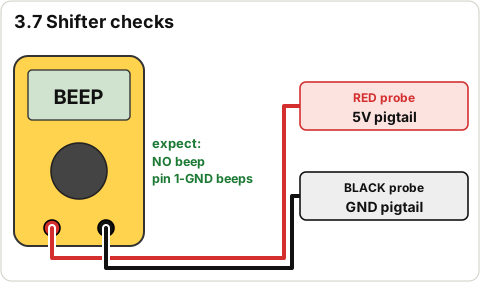
Beep: 5V pigtail to GND pigtail must not beep. Pin 1 to GND pigtail beeps. Pin 14 to 5V pigtail beeps. Pin 2 to pin 3 must not beep.
Diagram · Data path: GPIO16 > 74AHCT125 > panel DIN
Same bench setup as Stage 2, but: GPIO16 > DATA IN, DATA OUT > panel DIN, perfboard 5V > jack red, perfboard GND > jack black + ESP32 GND. ESP32 still on USB. Plug in the PSU; run Scrolling Text.
Pass: Same picture as Stage 2, no flicker.
STOP 3: checkpoint
Meter checks passed.
Panel works through the shifter on the bench.
PSU unplugged.
Troubleshooting, Stage 3
Symptom
Likely cause
Fix
Panel dark through the shifter
Pin 1 not to GND, or 5V missing on pin 14
Measure pin 14 to pin 7 with the PSU on: about 5 V
Chip gets warm
Output shorted or reversed chip
Unplug. Check notch direction and pin 3 isn't touching 5V/GND
Works, then flickers
Long ground path
Shorten the GND between ESP32, chip and panel; all grounds meet at one splice
🔒 Locked: finish Stage 3 first (every tick, its STOP box). You can read ahead.
Goal: Permanent wiring on rear_R: jack, splice, 1000 uF cap, ESP32 on the 5V rail, shifter, panel. Then a measured power-on and full-brightness test before anything is closed up.
3D viewStage 4 overview
The 3D model loads when you scroll here.
Drag to turn · pinch to zoom · two fingers to pan · tap a part for its name.
The 3D view is open at step .
Warning: This stage is the one that matters for safety. The PASS CHECK must be answered with real meter and WLED readings before Stage 5 unlocks.
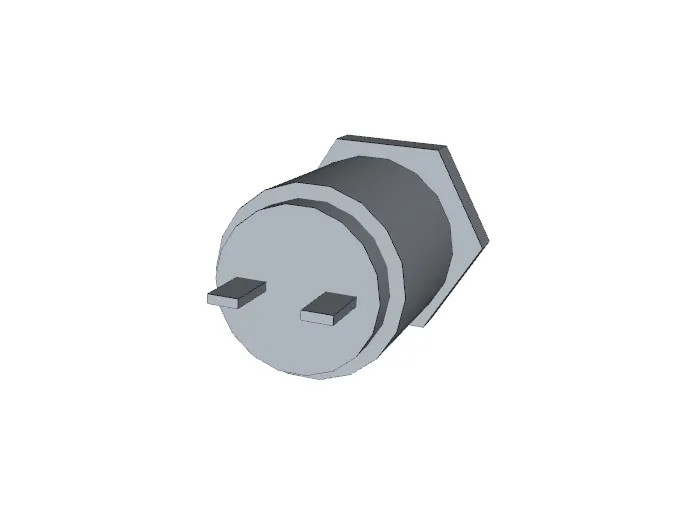
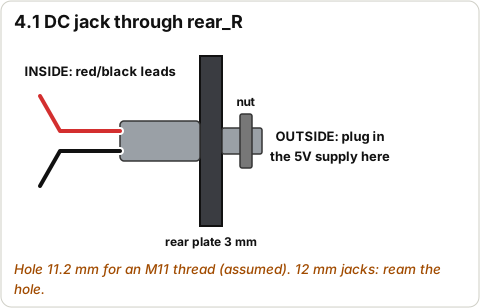
⏱ 5 min (est.) · Parts: DC jack, rear_R · Tools: pliers or spanner
Diagram · DC jack through the rear cover
Push the jack through the hole from the inside (wires inside), nut on the outside. Tighten firmly.
Note: Hole is 11.2 mm for an M11 thread (assumed). If your jack is the 12 mm kind, drill/ream the hole to 12 mm or set JACK_HOLE in cad/ticker.py before printing.
Pass: Jack doesn't spin when you twist the barrel.
4.2 Identify the panel's input power leads
⏱ 5 min (est.) · Parts: LED panel · Tools: eyes, multimeter
Diagram · Finding the panel's input end
At the IN end: the 3-pin connector carries 5V, GND, DIN. Many BTF panels also have a separate red/white power pair at that end. Read the labels at the pads where each wire is soldered: trust the pad labels, not the wire colours.
Use the separate power pair if there is one (thicker); otherwise the connector's 5V and GND.
Diagram · Power path from the supply to the panelDiagram · ESP32 powered from the 5V rail
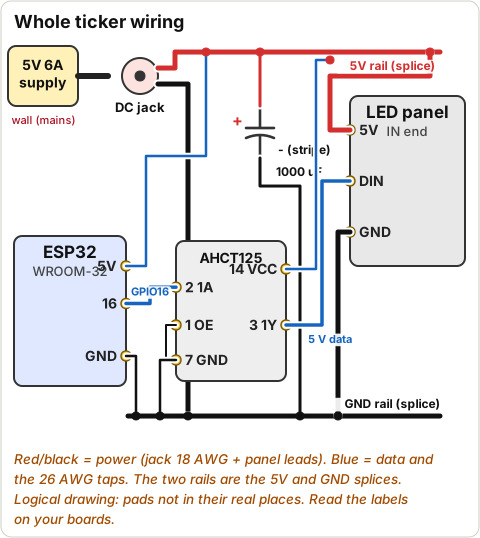
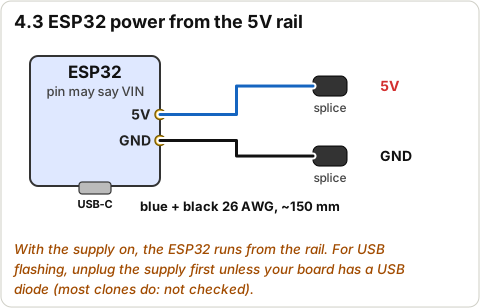
5V splice: jack red + panel 5V + perfboard 5V pigtail + a new blue 26 AWG wire to the ESP32 5V/VIN pin (~150 mm).
GND splice: jack black + panel GND + perfboard GND pigtail + a new black 26 AWG wire to an ESP32 GND pin.
Heat shrink over the wires before soldering; twist, solder, slide over, shrink.
Wiring:
Splice
Joins
5V
jack red, panel 5V, shifter 5V (pin 14), ESP32 5V/VIN
GND
jack black, panel GND, shifter GND (pin 7), ESP32 GND
Pass: Firm pull doesn't break either splice; no bare copper.
Don't do yet: Don't use the 26 AWG wire for the panel's power: only the jack's 18 AWG and the panel's leads carry the amps.
4.4 Solder the 1000 uF cap across the splices (polarity!)
⏱ 10 min (est.) · Parts: 1000 uF cap · Tools: iron, solder ( ), heat shrink
Diagram · Capacitor polarity: stripe to GND
At the panel input: the cap's long (+) leg to the 5V splice, the stripe (-) leg to the GND splice. Sleeve both legs in heat shrink. It sits in the cap cradle on rear_R.
Why: it soaks up the inrush when you plug in and smooths the LED current (BTF/Adafruit practice).
Pass: Stripe leg on GND. Legs sleeved.
Don't do yet: Don't reverse it.
4.5 Wire the data path
⏱ 10 min (est.) · Parts: ESP32, perfboard pigtails, panel DIN · Tools: iron, solder ( ), heat shrink
Diagram · Data path: GPIO16 > 74AHCT125 > panel DIN
ESP32 GPIO16 to perfboard DATA IN (solder to the header pin, sleeve it).
Perfboard DATA OUT to panel DIN (through the mating 3-pin connector, or solder + sleeve).
Wiring:
From
To
ESP32 GPIO16
74AHCT125 pin 2 (1A)
74AHCT125 pin 3 (1Y)
panel DIN
ESP32 5V/VIN
5V splice
ESP32 GND
GND splice (common ground)
Pass: Every wire labelled; nothing on the panel's DOUT end.
4.6 Mount the ESP32, perfboard and cap on rear_R
⏱ 10 min (est.) · Parts: ESP32, perfboard, cap, 2 zip ties, rear_R · Tools: cutters
Diagram · Inside the right rear cover: ESP32, shifter, cap, jackCAD render · rear R electronics (from cad/ticker.py)
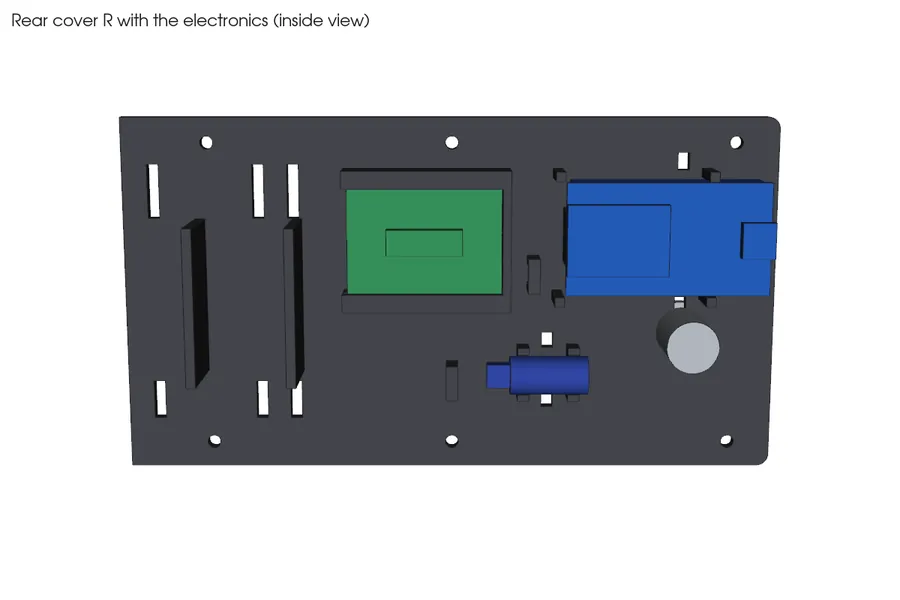
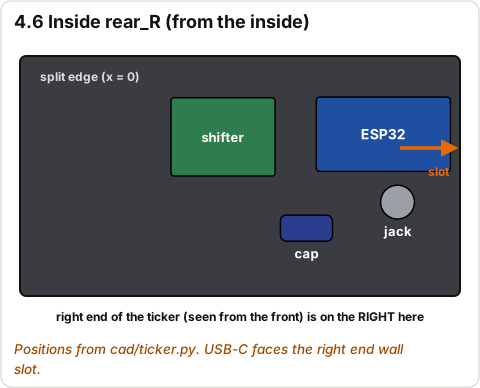
ESP32: pins down onto the two ledges, USB-C toward the right end (the end with the jack), between the posts. One zip tie through the two slots over the module.
Perfboard: slide into the rails. Cap: into its cradle, one zip tie round it.
Route the 26 AWG wires under clip 1 and the jack leads under clip 2.
Pass: Nothing loose when you shake rear_R gently.
4.7 Meter check before power
⏱ 5 min (est.) · Parts: the wired rear_R · Tools: multimeter
Diagram · Meter: no short between 5V and GND
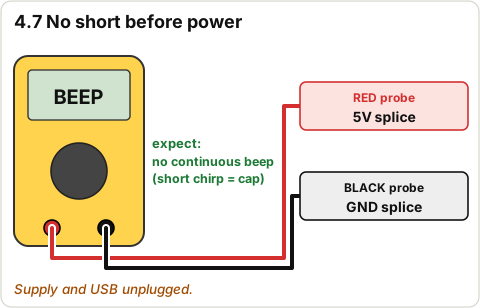
PSU unplugged, USB unplugged. Beep between the 5V and GND splices: a short chirp (cap charging) is fine, a continuous beep is a short.
Pass: No continuous beep (PASS CHECK).
4.8 First power-on (glasses on)
⏱ 5 min (est.) · Parts: PSU · Tools: multimeter
Diagram · Meter: volts at the panel input
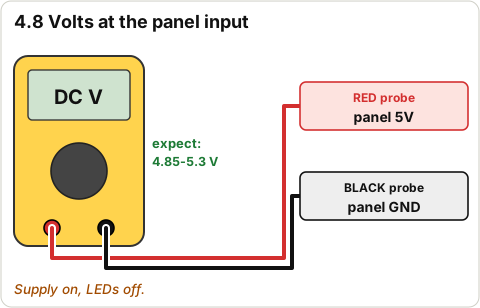
Plug the PSU into the wall, then into the jack. No USB. The ESP32's LED comes on, WLED appears at ticker.local within ~20 s.
Meter on DC volts at the panel 5V/GND input: write it in the PASS CHECK.
Pass: 4.85-5.3 V; WLED reachable; nothing smells or smokes.
4.9 Set the ABL to 4,500 mA
⏱ 2 min · Parts: ESP32 · Tools: phone
Diagram · WLED LED Preferences
LED Preferences: Automatic Brightness Limiter max current 4500 mA. Save.
Diagram · Full-white current test with ABL 4500 mA
Solid white, brightness 100 %. Open Info: read the estimated current. Meter at the panel input while it's on. After 2 minutes, unplug and touch the jack, splice and leads.
Note: 4.5 A is near the limit of many 5.5 x 2.1 mm jacks (their rating wasn't on the DaierTek listing we read). If the jack gets more than warm, use ABL 3500 mA: text scrolling uses far less anyway.
Pass: <= 4500 mA, >= 4.6 V under load, nothing too hot (PASS CHECK).
4.11 Normal text test
⏱ 2 min · Parts: panel · Tools: phone
Diagram · All-pixels and colour test
Brightness ~40 %, Scrolling Text HELLO PIN. Typical text lights 10-25 % of pixels: Info should show well under 2 A (est.).
Pass: Clean scrolling, no flicker.
✅ PASS CHECK (required before final assembly): power-on and current test
Answer with what you actually saw or measured. The STOP box unlocks when every answer is in range.
A continuous beep is a short circuit. Find it before plugging in (a brief chirp is the cap charging).
Stripe = minus = GND. Fix it now: a reversed cap can burst.
Should be 4.85-5.3 V. Way off: wrong supply or a bad splice.
Must be 4,500 mA or less. Higher means ABL is off or set wrong.
Below 4.6 V the wires/jack are dropping too much: shorten or thicken them, or lower ABL.
Too hot: unplug. Lower ABL to 3500 mA and redo the splice; tell Claude/Orrin.
STOP 4: checkpoint
PASS CHECK answered with real readings and in range.
Cap polarity confirmed (stripe on GND).
PSU unplugged again before Stage 5.
Troubleshooting, Stage 4
Symptom
Likely cause
Fix
ESP32 resets when LEDs go bright
Voltage dip on the rail
Check the cap is in; shorten the 5V/GND to the ESP32; lower ABL
Voltage under load < 4.6 V
Thin or long power path, weak splice
Redo the splice, use the panel's thicker power pair, keep leads short
WLED estimated current > 4500
ABL off or not saved
LED Preferences: enable ABL, 4500, Save; reboot
Jack hot
Jack rating below ~4.5 A
ABL 3500 mA; or a higher-rated jack (ask before buying)
Nothing lights after wiring
Data from the shifter to DOUT end, or DIN wire broken
Re-check the IN end; beep pin 3 to DIN
🔒 Locked: finish Stage 4 first (every tick, its STOP box and its PASS CHECK). You can read ahead.
Goal: Acrylic cut and seated in the joined shell, grid behind it, panel behind the grid, lit and crisp.
3D viewStage 5 overview
The 3D model loads when you scroll here.
Drag to turn · pinch to zoom · two fingers to pan · tap a part for its name.
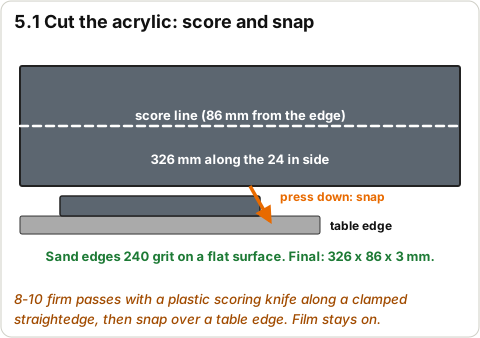
Film ON. Mark 330 x 86 mm along the 24 in side. Clamp the straightedge, score 8-10 passes along the line, turn over and score once more over the same line, then snap it over a table edge.
Sand the edges flat with 240 grit on a flat surface. Test-fit in the rebate; take a little more off until it drops in.
Pass: Drops into the rebate without forcing, no cracks.
Don't do yet: Don't saw or drill it without backing: acrylic chips and cracks.
5.2 Join the shell halves for good
⏱ 5 min (est.) · Parts: shell_L, shell_R, 2 pins, 2 x M3x12 · Tools: 2.5 mm hex key
Diagram · Shell joint: pins, M3x12 screw and insert
Same as the Stage 1 dry fit, screws now firm (not crushing).
Peel the inside film, clean with a soft cloth (mild soapy water if needed; no alcohol on extruded acrylic). Lay the shell face down on a towel. Drop the acrylic into the rebate. Leave the front film on until the end.
Pass: Acrylic flat in the rebate, no dust trapped (look through the front).
5.4 Drop in the louvre grid
⏱ 2 min · Parts: grid_L, grid_R · Tools: -
CAD render · grid L (from cad/ticker.py)
Left half first (it has the centre divider), then the right half, both behind the acrylic.
Pass: Grid sits flat, square to the window.
5.5 Fit the panel, input end on the right
⏱ 10 min (est.) · Parts: LED panel, 4 VHB pads · Tools: scissors
Diagram · Cross-section: bezel, acrylic, grid, LEDs, panel, electronics gap, rear plate3D stand-in at true size (not a photo; sizes from CART.md / assumed)
Stick 4 small VHB pads on the grid's outer frame (corners). Lower the panel LEDs facing the grid, with the IN end on the right as seen from the front (on your left now, with the shell face down).
Press it gently onto the pads. The panel's leads fold back toward rear_R's electronics.
Pass: Panel flat on the grid, leads at the electronics end.
Don't do yet: Don't press on single LEDs; press on the panel edges.
5.6 Light test before closing
⏱ 5 min (est.) · Parts: everything · Tools: phone
Diagram · Orientation test results and fixes
Rest rear_R behind the shell (don't screw it). Plug in the PSU. Scrolling Text, then Solid white 10 %.
Pass: Square, crisp pixels; no cell bleeding into its neighbour much; text reads correctly from the front.
STOP 5: checkpoint
Acrylic seated, grid in, panel taped, light test good.
PSU unplugged.
Troubleshooting, Stage 5
Symptom
Likely cause
Fix
Acrylic cracked while snapping
Not scored deep enough
Score more passes; you have 12 x 24 in of sheet (4+ strips)
Text mirrored now
Panel turned round vs the bench test
Flip it, or change first-LED left/right in 2D Configuration
Light bleeds between cells
Grid not tight to the panel
Thicker VHB pads; ribs on the rear cover press it forward
Dust behind the acrylic
Static
Lift out, blow off, refit
🔒 Locked: finish Stage 5 first (every tick, its STOP box). You can read ahead.
Goal: Both rear covers screwed on, the USB-C reachable, the ticker screwed into its walnut-look base.
3D viewStage 6 overview
The 3D model loads when you scroll here.
Drag to turn · pinch to zoom · two fingers to pan · tap a part for its name.
The 3D view is open at step .
6.1 Screw on rear_L
⏱ 5 min (est.) · Parts: rear_L, 6 x M3x10 · Tools: 2.5 mm hex key
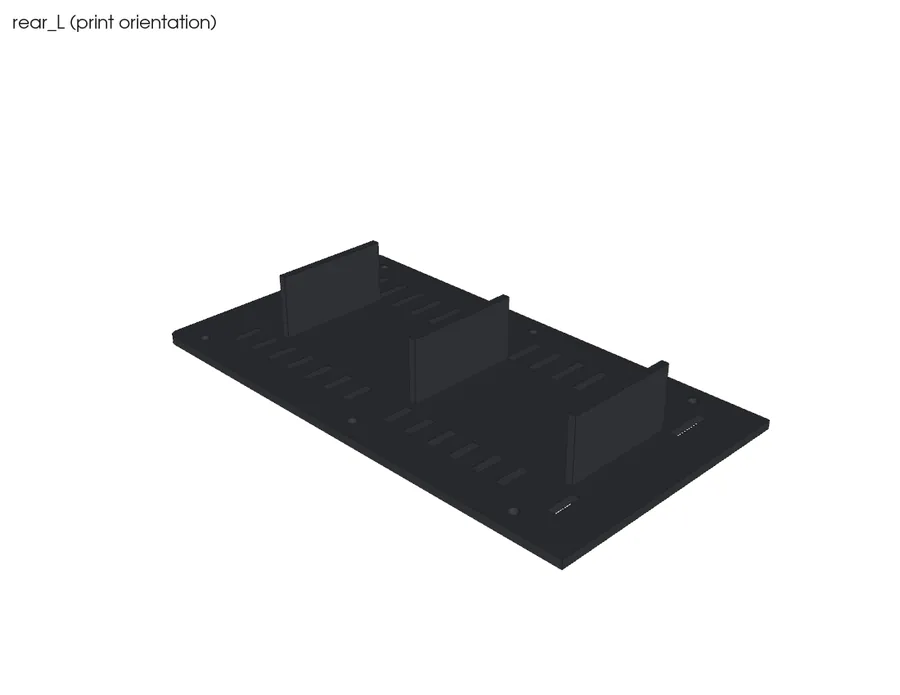
CAD render · rear L (from cad/ticker.py)
Ribs toward the panel. 6 screws into the inserts, snug in a cross pattern.
Pass: Plate flat, no rattle.
6.2 Check the USB-C lines up, then screw on rear_R
⏱ 10 min (est.) · Parts: rear_R (wired), 6 x M3x10 · Tools: 2.5 mm hex key, USB-C cable
Diagram · USB-C through the end-wall slot
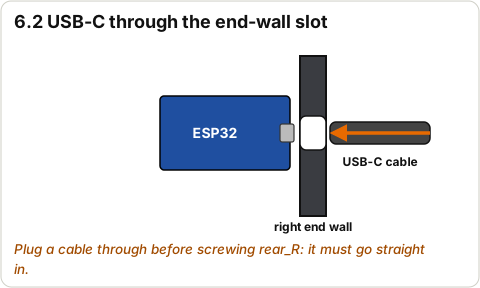
Lower rear_R in, tucking the panel leads into the free space by the cap. Push a USB-C cable through the end-wall slot into the ESP32: it should go straight in.
Unplug the cable, then 6 screws.
Pass: USB-C plugs in through the slot; no wire pinched under the plate.
Pins into one half, push the halves together on a flat table.
Pass: Seam tight, pocket continuous.
6.4 Set the ticker in the base and screw it
⏱ 10 min (est.) · Parts: ticker, base, 4 x M3x10 · Tools: 2.5 mm hex key
Diagram · Ticker into the base, side viewCAD render · sightline section (from cad/ticker.py)
Drop the ticker into the pocket (it leans back ~10 deg and sits on the pocket floor). Lift the pair, tilt it, and drive the 4 screws up through the base into the case-bottom inserts.
Pass: Ticker firm in the base; no wobble. From your chair, the bottom row of LEDs sits clear above the walnut.
6.5 Plug in and route the cable
⏱ 2 min · Parts: PSU · Tools: -
CAD render · assembly rear (from cad/ticker.py)
PSU into the jack on the back; run the cable down behind the base.
Pass: WLED back on; text scrolling.
6.6 Peel the front film
⏱ 1 min · Parts: acrylic · Tools: -
CAD render · lit front (from cad/ticker.py)
Peel the outside film. Done.
Pass: Clean smoked front.
STOP 6: checkpoint
Case closed, USB-C reachable through the slot.
Ticker screwed into the base and running.
Troubleshooting, Stage 6
Symptom
Likely cause
Fix
Rear cover won't sit flat
Wire or zip tie under it
Re-route under the clips; trim zip-tie tails
Ticker rocks in the base
Slot clearance
A strip of felt or VHB in the slot front
USB-C won't reach
Board not pushed to the right end
Loosen the zip tie, slide the board toward the slot
🔒 Locked: finish Stage 6 first (every tick, its STOP box). You can read ahead.
Goal: PIN Ticker Control on your phone and Mac: type anything, pick scroll mode, speed, font, colours and effects, save native WLED presets (Alexa can call them) and set schedules.
3D viewStage 7 overview
The 3D model loads when you scroll here.
Drag to turn · pinch to zoom · two fingers to pan · tap a part for its name.
The 3D view is open at step .
The demo above runs in this page with a simulated 32 x 8 display: try it now, before the ticker exists. It doesn't talk to any ticker.
Note: WLED serves plain http, and browsers block an https page from calling a device on your Wi-Fi. So the real app runs from the ticker itself (step 7.1) or from your Mac (step 7.2). A copy on an https website can only run the demo. Full details: app/README.md.
Try it: PIN Ticker Control, demo mode (a simulated display in this page; it doesn't talk to any ticker)
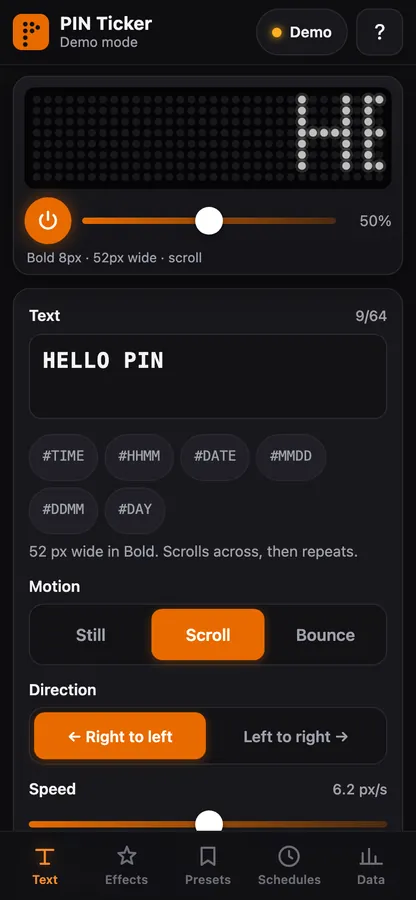
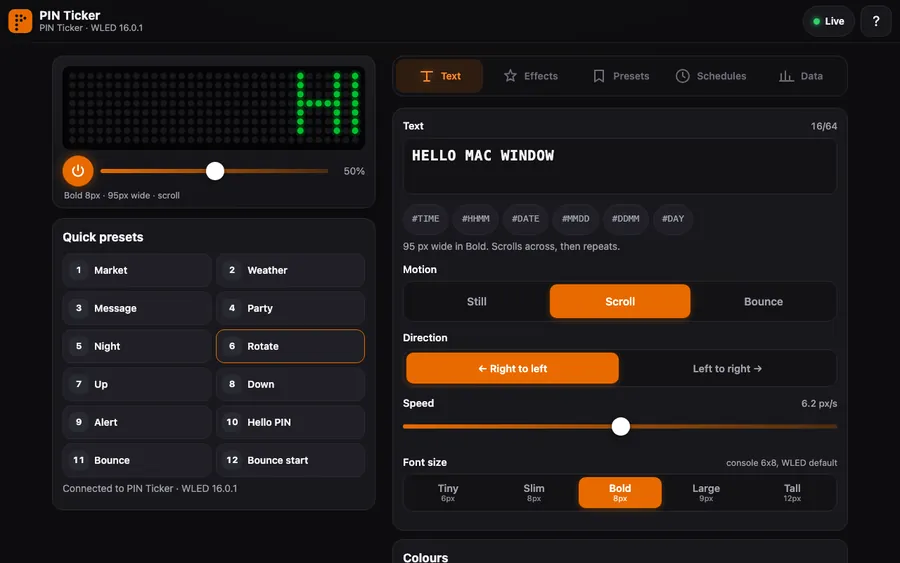
Control app screenshot (against the mock WLED in the tests, not a real ticker)
On the Mac, open http://ticker.local/edit (WLED's file editor; use the IP if .local doesn't resolve).
Upload app/dist/pin-ticker.htm from this repo (one self-contained file).
On the phone, open http://ticker.local/pin-ticker.htm. Same address as WLED, so no setup: it connects by itself.
Pass: The app says Connected and its preview matches the panel.
7.2 Add it to your home screen (and the Mac)
⏱ 3 min · Parts: phone, Mac · Tools: phone, computer
Control app screenshot (against the mock WLED in the tests, not a real ticker)
iPhone (Safari): Share > Add to Home Screen. It opens full screen like an app. It needs your home Wi-Fi.
Mac: bookmark the same address, or run python3 -m http.server 8787 --directory app in the ticker folder and open http://localhost:8787. From localhost the browser can install it and cache it offline; enter ticker.local as the device.
Pass: The app opens from the home-screen icon.
7.3 Install the starter presets
⏱ 3 min · Parts: ticker · Tools: phone
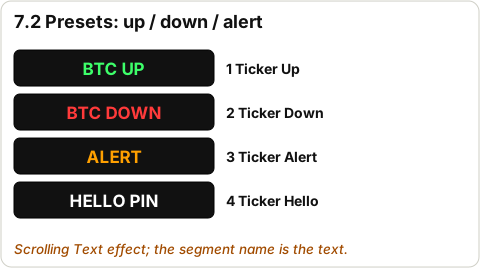
Diagram · Starter presets 1-10 (native WLED presets)Control app screenshot (against the mock WLED in the tests, not a real ticker)
First back up what you have: WLED Config > Security & Updates > Backup presets.
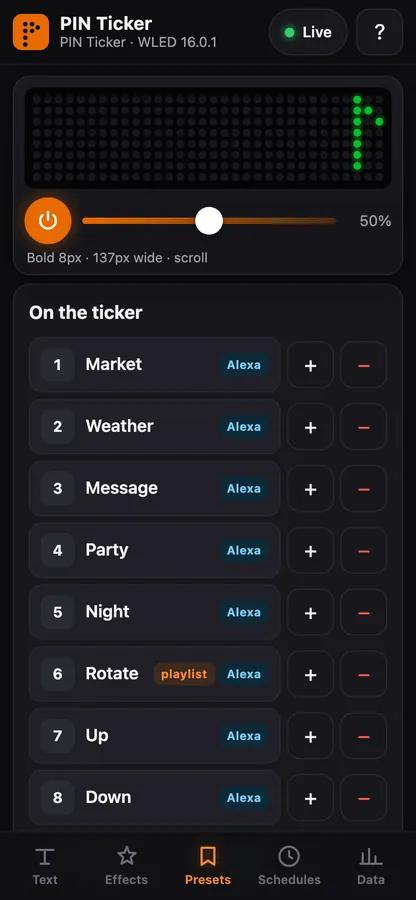
App > Presets > Install starter pack. It writes native WLED presets with fixed ids, so WLED's own app and Alexa see them too:
id
Name
What it shows
1
Market
BTC/SPY line in green (live prices while the feed script runs, Stage 9)
2
Weather
weather line in white (live while the feed runs)
3
Message
your last saved message
4
Party
colour effect, no text
5
Night
dim, slow
6
Rotate
playlist: cycles through the others
7-10
Up / Down / Alert / Hello PIN
green / red / amber / white lines
Note: Ids 1-9 matter: WLED gives Alexa at most 9 preset devices, and stops at the first missing id.
Pass: All 10 presets show in the app and in WLED's own preset list.
7.4 Type a message
⏱ 5 min (est.) · Parts: ticker · Tools: phone
Control app screenshot (against the mock WLED in the tests, not a real ticker)
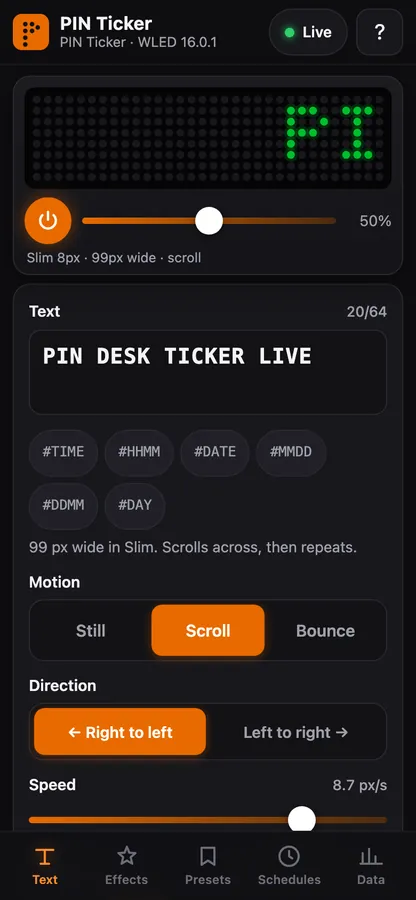
Text tab: type anything (ASCII; up to 64 characters). Pick Scroll, Static or Bounce, the speed, the direction and the font size, then the colours. The preview shows what the ticker will do. Send.
Note: Static only holds still when the text fits on 32 pixels (about 5 characters); longer text has to scroll. Bounce isn't a WLED feature: the app makes it from a 2-step playlist (forward, then reverse). A # starts a clock code like #TIME.
Pass: The ticker shows your text, the way the preview did.
7.5 Effects, palettes and brightness
⏱ 5 min (est.) · Parts: ticker · Tools: phone
Control app screenshot (against the mock WLED in the tests, not a real ticker)
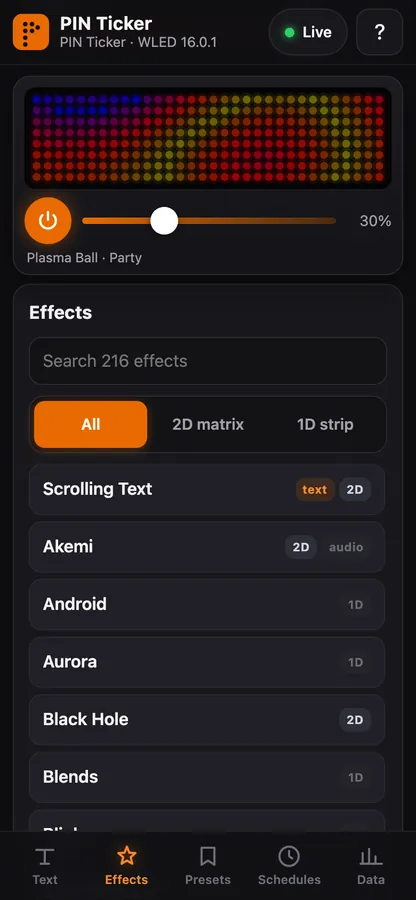
Effects tab: the list comes from your ticker's WLED, with search. Pick a palette and brightness. The current limiter (ABL 4,500 mA, Stage 4) still caps the power whatever you pick.
Pass: An effect runs; brightness changes.
7.6 Save it as a preset
⏱ 3 min · Parts: ticker · Tools: phone
Control app screenshot (against the mock WLED in the tests, not a real ticker)
Presets > Save current > pick an id and a name. Ids 1-9 can become Alexa devices (Stage 8). Playlists: pick presets and how long each one shows.
Pass: The new preset appears in the list and in WLED's own app.
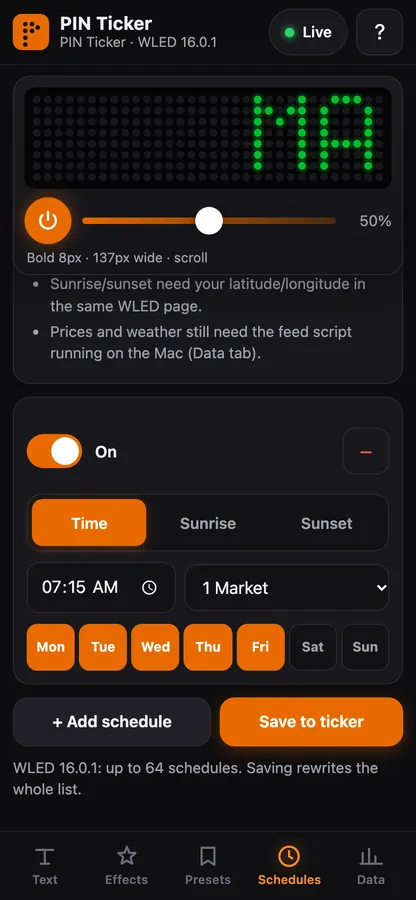
7.7 Schedules
⏱ 5 min (est.) · Parts: ticker · Tools: phone
Control app screenshot (against the mock WLED in the tests, not a real ticker)
First set the clock: WLED Config > Time & Macros > time zone (NTP on).
App > Schedules: for example 07:00 Mon-Fri > Market, 22:30 every day > Night. These are WLED's own time-controlled presets: the ticker runs them by itself, with no Mac or phone on.
Note: Live prices and weather only update while tools/ticker_feed.py runs on the Mac (Stage 9).
Pass: The schedule shows in WLED's Time & Macros page.
7.8 Pick the boot preset
⏱ 2 min · Parts: ticker · Tools: phone
Diagram · WLED LED Preferences
WLED Config > LED Preferences > apply preset 3 (Message) at boot. Default brightness ~40 % (est.).
Pass: After a power cut the ticker comes back on your message.
STOP 7: checkpoint
The app opens from the ticker on your phone and sends text.
Starter presets 1-10 are installed.
At least one schedule is saved.
Troubleshooting, Stage 7
Symptom
Likely cause
Fix
App says it can't reach the ticker
Opened from an https page, wrong address, or phone on another Wi-Fi
Open it from http://ticker.local/pin-ticker.htm or your Mac; use the IP instead of .local (Android)
/edit upload fails or the page is missing
Older WLED, or the file system is full
Update WLED (OTA), delete old files in /edit, or use the Mac way (7.2)
Characters show as ?
Not in WLED's font
Use plain ASCII letters, digits and symbols
Schedule fires at the wrong time
Time zone not set
WLED Config > Time & Macros: time zone + NTP
Presets changed in the app don't show in WLED
WLED page cached
Reload the WLED page
🔒 Locked: finish Stage 7 first (every tick, its STOP box). You can read ahead.
Goal: Alexa turns the ticker on and off, sets brightness, and starts presets by voice; routines add your own phrases ("Alexa, market mode"). Free, no developer account.
3D viewStage 8 overview
The 3D model loads when you scroll here.
Drag to turn · pinch to zoom · two fingers to pan · tap a part for its name.
The 3D view is open at step .
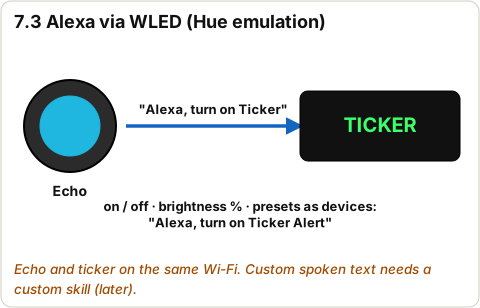
Note: WLED pretends to be a Philips Hue bridge, so the Echo controls it on your Wi-Fi. Alexa can switch presets but can't carry text: free text by voice is step 8.5 (Siri). Everything here, with sources: docs/ALEXA.md. Not tried on a real Echo yet.
8.1 Turn on Alexa in WLED
⏱ 3 min · Parts: ticker · Tools: phone
Diagram · Alexa through WLED's Hue emulation
Use WLED v16.0.1 or newer (an Echo discovery fix landed there).
Config > Sync Interfaces > Alexa Voice Assistant: Emulate Alexa device ON, invocation name Ticker, Also emulate devices to call the first 6 presets (the maximum is 9). Save, then reboot the ticker.
Give the ticker a fixed IP in your router (a DHCP reservation).
Pass: Saved; the ticker is back on after the reboot.
8.2 Discover in the Alexa app
⏱ 5 min (est.) · Parts: Echo · Tools: phone
Diagram · Alexa through WLED's Hue emulation
Echo and ticker on the same Wi-Fi (not guest Wi-Fi). Say "Alexa, discover devices", or in the Alexa app: Devices > + > Add Device > Other > Discover (wording varies).
You should get Ticker plus Market, Weather, Message, Party, Night, Rotate.
Pass: 7 devices found.
8.3 Voice test
⏱ 3 min · Parts: ticker · Tools: Echo
Diagram · Alexa through WLED's Hue emulation
"Alexa, turn on Market." "Alexa, set Ticker to 30 percent." "Alexa, set Ticker to red." "Alexa, turn off Ticker."
Note: "Turn off Market" turns the whole ticker off (that's how WLED does it). Red changes the text colour.
Pass: All four work.
8.4 Routines: your own phrases
⏱ 10 min (est.) · Parts: Echo · Tools: phone
Diagram · Alexa routine: voice phrase to a preset device
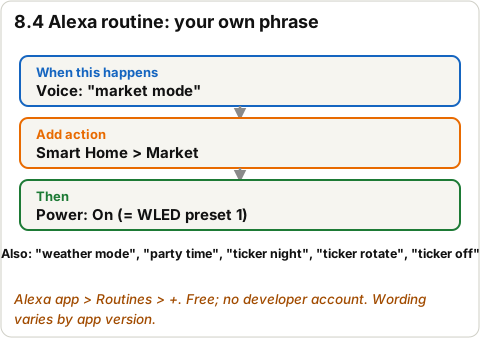
Alexa app > More > Routines > + (wording varies). When this happens: Voice, type the phrase. Add action: Smart Home > device > Power on. Save.
Say
Action
Alexa, market mode
Market: on
Alexa, weather mode
Weather: on
Alexa, party time
Party: on
Alexa, ticker night
Night: on
Alexa, ticker rotate
Rotate: on
Alexa, ticker off
Ticker: off
Note: If Alexa answers something else, the phrase clashes with a built-in one: put "ticker" in it.
Pass: "Alexa, market mode" switches the ticker to Market.
8.5 Optional: your own words by voice (Siri)
⏱ 10 min (est.) · Parts: iPhone · Tools: phone
Diagram · iPhone Shortcut: dictated text to the ticker
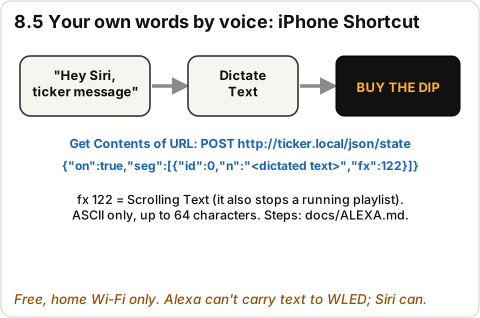
Alexa can't send text to WLED. The free way is an iPhone Shortcut: Dictate Text, then Get Contents of URL http://ticker.local/json/state, method POST, JSON body {"on":true,"seg":[{"id":0,"n":"<dictated text>","fx":122}]}. Name it "Ticker message".
"Hey Siri, ticker message" > say your words > they scroll. Home Wi-Fi only. Exact steps: docs/ALEXA.md.
Note: Free text through Alexa itself needs a custom skill, an Amazon developer account and a way into your home network. Not set up: Anthony decides on any sign-up.
Pass: Your dictated words scroll on the ticker.
STOP 8: checkpoint
Alexa turns the ticker on/off and starts Market by voice.
At least one routine works.
Troubleshooting, Stage 8
Symptom
Likely cause
Fix
Alexa finds nothing
Echo on guest Wi-Fi / another network, or old WLED
Same network; WLED v16.0.1+; unplug the Echo and the ticker, plug both back in, discover straight away
Preset devices missing
A gap in ids 1-6, or names changed after discovery
Fill the gap; save Sync Interfaces; discover again
Newer Echo still finds nothing
Some newer Echo models don't do local Hue discovery (reported, not confirmed)
Use the WLED app or the control app; Siri for voice (8.5)
"Night mode" does something else
Clashes with a built-in Alexa phrase
Use "ticker night"
🔒 Locked: finish Stage 8 first (every tick, its STOP box). You can read ahead.
Goal: BTC, SPY, weather and a custom line scrolling in green/red/amber, pushed by tools/ticker_feed.py on the Mac.
3D viewStage 9 overview
The 3D model loads when you scroll here.
Drag to turn · pinch to zoom · two fingers to pan · tap a part for its name.
The 3D view is open at step .
9.1 Copy and edit the config
⏱ 5 min (est.) · Parts: tools/ticker_feed.example.json · Tools: computer
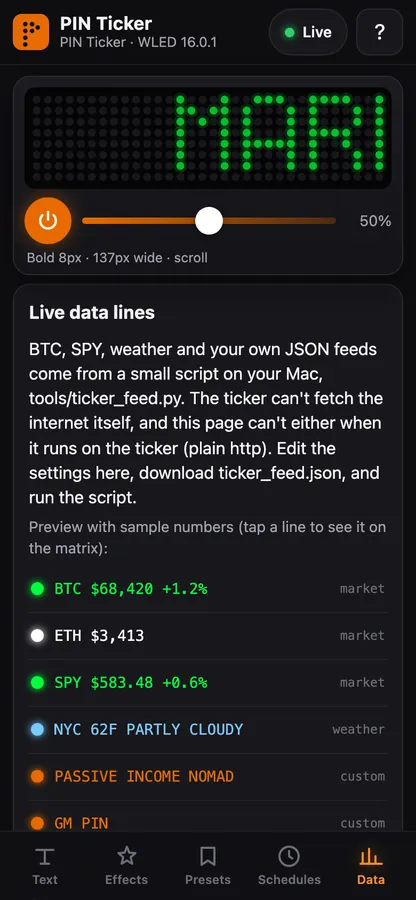
Diagram · Live data feed into the WLED JSON APIControl app screenshot (against the mock WLED in the tests, not a real ticker)
Copy tools/ticker_feed.example.json to tools/ticker_feed.json. Set wled_host (ticker.local or the IP), latitude/longitude/place for your weather, your custom line, and which sources are on.
Pass: Config saved.
9.2 Dry run (pushes nothing)
⏱ 2 min · Parts: the script · Tools: computer
Diagram · Live data feed into the WLED JSON API
In Terminal, in the ticker folder: /usr/bin/python3 tools/ticker_feed.py --dry-run
It prints each line and the JSON it would send.
Note: Use Apple's /usr/bin/python3. The python.org installer's python3 can fail with CERTIFICATE_VERIFY_FAILED until you run its 'Install Certificates.command'.
Pass: BTC, SPY, weather and your custom line print with colours.
9.3 Push for real
⏱ 2 min · Parts: ticker · Tools: computer
Diagram · Live data feed into the WLED JSON API
/usr/bin/python3 tools/ticker_feed.py --once pushes the next line. Run it 4 times: the lines rotate.
Or --loop to keep going every 60 s while the Terminal is open.
Pass: The ticker shows the price in green (up) or red (down).
9.4 Optional: run it every minute (launchd)
⏱ 5 min (est.) · Parts: tools/com.pin.ticker-feed.plist · Tools: computer
Diagram · Live data feed into the WLED JSON API
The sample plist is not installed. If you want it: fix the two paths inside, copy it to ~/Library/LaunchAgents, launchctl load it (instructions at the top of the file). It runs only while the Mac is awake.
Pass: A new line every minute; the log is /tmp/ticker-feed.log.
9.5 Follow the presets (Alexa + app)
⏱ 5 min (est.) · Parts: ticker · Tools: computer
Diagram · Live data feed into the WLED JSON API
/usr/bin/python3 tools/ticker_feed.py --follow watches which preset is on. While Market (preset 1) is the last one applied it pushes market lines; while Weather (2) is, weather lines; any other preset stops it. So "Alexa, market mode" gives live prices, as long as the Mac is awake and running it.
The control app's Data tab writes the config (ticker_feed.json): download it into tools/.
Pass: Turning on Market in the app starts live prices within a minute.
9.6 Know what each source is
⏱ 2 min · Parts: - · Tools: -
Diagram · Live data feed into the WLED JSON API
Line
Source
Key?
Notes
BTC
CoinGecko public API
no
rate-limited; 24 h change
SPY
Yahoo Finance chart JSON
no
unofficial, may be delayed or change; vs previous close (TODO in the script)
Weather
Open-Meteo
no
set your lat/lon
Custom
your config
-
ASCII only
Pass: You know SPY is the fragile one.
STOP 9: checkpoint
Dry run prints every line.
The ticker shows live prices in colour.
Troubleshooting, Stage 9
Symptom
Likely cause
Fix
CERTIFICATE_VERIFY_FAILED
python.org Python without certificates
Use /usr/bin/python3, or run 'Install Certificates.command'
WLED not reachable
Wrong host or Mac on another network
Use the IP from WLED instead of ticker.local
SPY skipped
Yahoo blocked or changed the endpoint
Set "spy": false, or swap fetch_spy for a keyed API
Text shows but no scrolling
Effect not Scrolling Text
The script looks it up by name; check the WLED version has it
Generated by tools/guide_v2.py from tools/guide_content.py. Nothing on this page loads from the internet (links open only when you tap them) and no photo is uploaded anywhere: Check my part only shares a photo when you tap Send.